|
Navigation: The User Interface > What is in Simplicity > Toolbar > Payment PlanProgram Navigation: Simplicity > toolbar > Payment Plan |
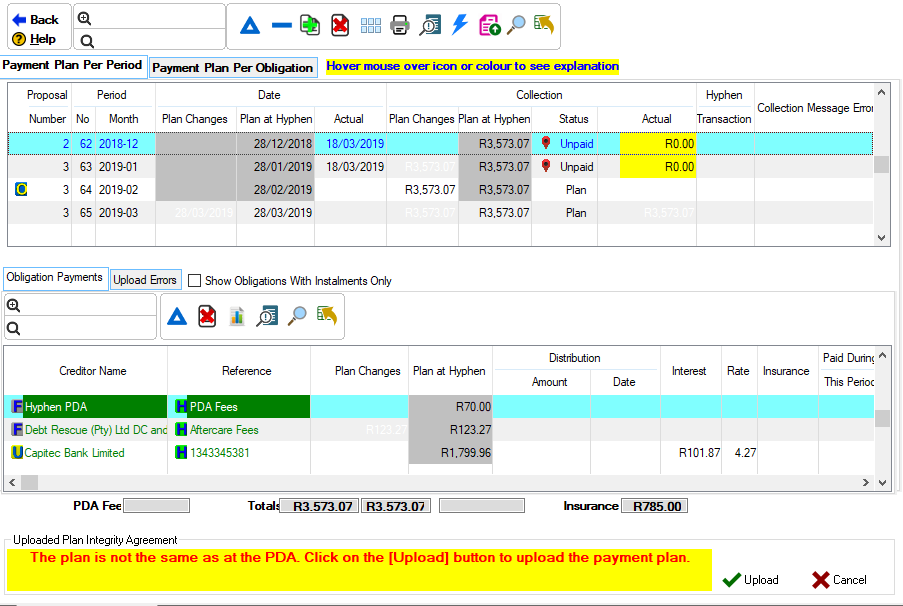
·This browse allows the user to view and maintain the client's payment plan.
·Payment information regarding the hyphen distributions is displayed on the payment plan.
·The client plan will be automatically calculated and balances updated according to the payment information received from Hyphen (e.g. if a client's made a payment or defaulted).
·Details on missed payments and suspensions are also displayed as hot-fields on the payment plan.
·Additional periods can be inserted into the payment plan by the user in order to account for possible irregularities such as debiting a client's account again after a missed payment due to insufficient funds, uploading a new plan with updated figures to Hyphen after the funds have been frozen, or if the client wishes to make an additional payment outside of the original plan.
·A period on the plan can also be marked as paid or unpaid by the user where necessary.
·Specific amounts and dates can be changed by the user such as planed and actual amounts/dates (where applicable).
·The payment plan can also be calculated manually by the user.
·All changes made to the payment plan must be uploaded to the PDA in order to acknowledge new changes made to the payment plan.
Click on the image to expand!
Click on the headings to expand:
|
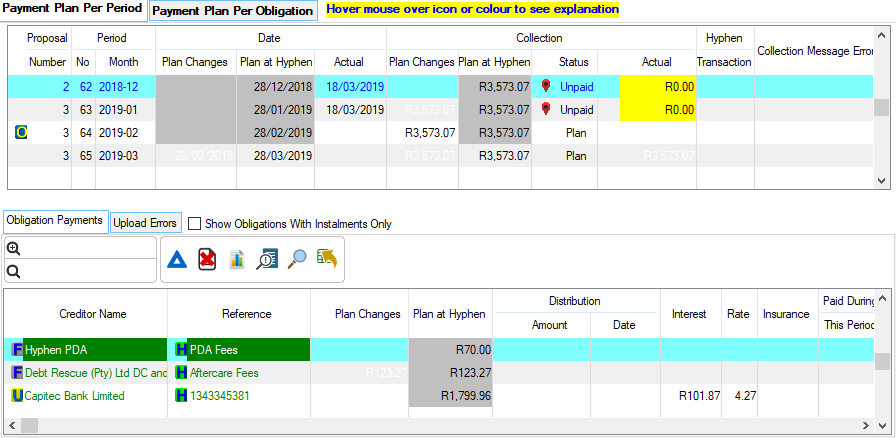
·Payment Plan Per Period: oThis tab allows the user to view and work on the payment plan per period. oThis tab will also display any upload errors and obligation payments.
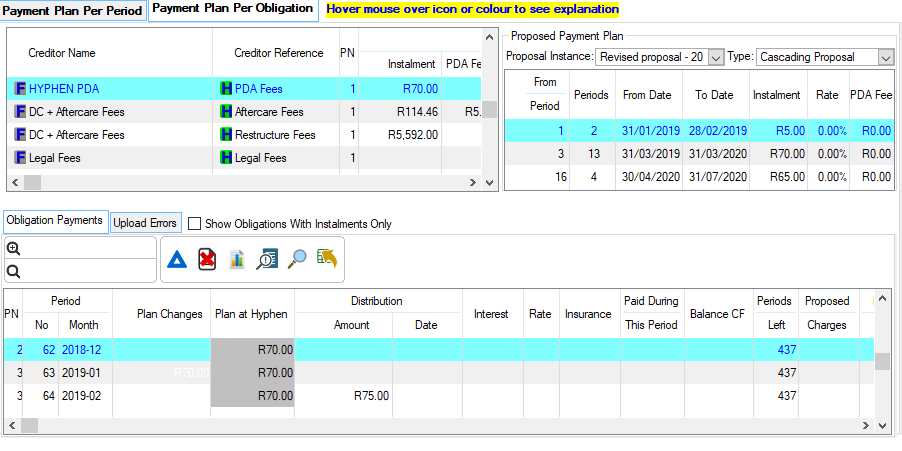
·Payment Plan Per Obligation: oThis tab allows the user to view and work on the payment plan per obligation. oThis tab will also display any upload errors and obligation payments. oThis tab will also display a browse of the actual payment plan per creditor. oProposal Instance: ·This drop down list allows the user to select the proposal instance for which to view the proposed payment plan per obligation. oType: ·This drop sown allows the user to select the type of proposal for which to view the proposed payment plan per obligation.
|
 Information regarding the Payment Plan:
|
·Collection Comment: oThis lookup allows a user to select a collection comment from the master list in order to insert additional information pertaining to the selected period.
·Overrides: oAn override allows the user to make changes to the payment plan.
·Priorities Payments: oThese are creditors that receive payments first, this will also allow that only certain creditors receive payments the first few periods. oThe following can be priority payments: oExcluded PDA payments oInsurance oProposed charges
·Balance BF: oBalance BF is the beginning balance of the payment plan.
·Balance CF: oBalance CF is the closing balance of the payment plan. |

|
oThis control also allows the user to add an additional period on the payment plan. oThis period can also be edited just like any future period on the payment plan. oRe-strike is inserted after the selected period. oThe date of the re-strike cannot precede the date of the selected period nor can it follow the date of the next period. oThe re-strike is indicated on the payment plan with a suffix of "-01" on the period month (e.g. re-strike for period 2015-11 will be 2015-11-01)
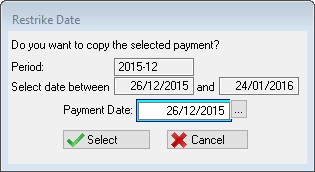
This is an example of the Re-strike form
·Period: oThis field displays the period for which the re-strike will be inserted.
·Select date between: oThese fields display the dates between which the re-strike can be inserted.
·Payment Date: oThis field allows the user to insert the date for the re-strike. |
 Maintain Unpaid's and Clear Overrides:
|
oMark as Un-paid: This control allows the user to mark a period as unpaid it also allows the user to remove the unpaid flag (revert the status "Plan"). oClear Un-Paid: This control also allows the user to clear the overrides on the payment plan (e.g. clearing the changes made by the user). oClear Overrides: This allows the user to remove the override flag on a particular plan detail change made by a user. oRemove from Hyphen Plan: This option allows the user to instruct Hyphen not to allocate funds to that period (applies to un-paid periods on non-debit order plans). oClear removal from Hyphen Plan: This option allows the user to clear the instruction to Hyphen not to allocate funds to that period (applies to pending "Removal from Hyphen Payment Plan" requests on non-debit order plans).
|
The following can be found on the Payment Plan
|
·
oThis control allows the user to print the distribution details for the selected period for the selected client statement or for all clients.
·
oThis control allows the user to recalculate the current payment plan for the selected client.
·
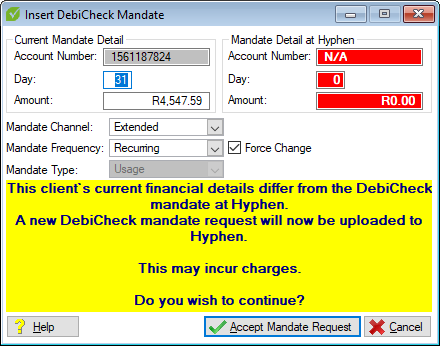
oThis control allows the user to upload the payment plan to Hyphen. §If the client is DebiCheck registered (and Debicheck selected in the client's Financials) the following window will appear when uploading a Payment Plan. §This will display a comparison between the mandate details on Simplicity and those at Hyphen, in the event that these details differ confirmation is required. §Once uploaded, the status of the Debicheck mandate can be viewed on the client browse on the Tree-Filter. §The statuses are updated (where available) when performing the Hyphen Download.
·Account Number: ·This will allow the user to insert the account number.
·Day: ·This will allow the user to insert the day for when the Debicheck must run.
·Amount: ·This will allow the user to insert the amount.
·Mandate Channel: ·This allows the user to select a channel which determines the amount of time a client has to approve a mandate
oDelayed: oThe electronic mandate must be approved the same day by 21h00 (09:00 PM); o If the Consumer does not approve the mandate by this time, then the mandate will expire.
oExtended: oThe electronic mandate will only be available to the Consumer for approval the following day after submitting the mandate request; o The consumer has 2 (two) days to approve the mandate. The Consumer has until 19h00 (07:00 PM) each of the 2 (two) days to approve the mandate; o If the Consumer does not approve the mandate by this time, then the mandate will expire.
·Mandate Frequency: oRecurring - This option will upload a mandate that will allow the debit to occur monthly. oOnce-Off - This option will upload a mandate that will occur only once on the day indicated.
·Force Change: oThis allows the user to force a Mandate request even though the desired change falls within the allowed variance of the existing mandate.
·Show with Installments only: §This control allows the user to hide obligation records that do not contain a planned instalment.
·
oThis control allows the user to clear the override on a specific plan detail and also allows a user to mark a specific payment suspension for release.
oClear Overrides: This allows the user to remove the override flag on a particular obligation payment change made by a user. oEnable Upload to PDA: This allows the user to override the "Hold" status on the legal fees and restructure fees on the plan only (if the fees were put on hold in the fee tab). oMark disabled upload as paid/unpaid: This allows the user to mark legal fees or restructure fees that are on hold as unpaid or paid. oClear suspended payment: This allows the user to mark an obligation suspension for release (is automatically done when the creditor or reference is changed after the suspension occurred).
·
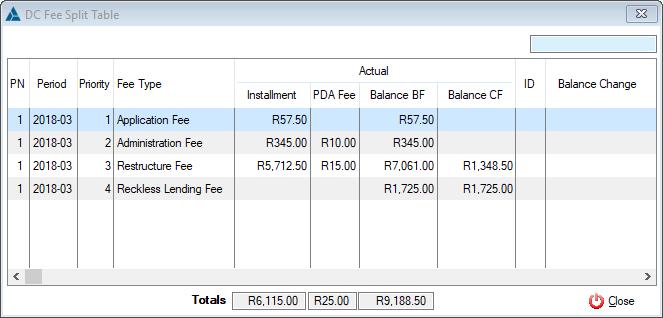
oThis control allows the user to see the various payments being made to the different DC fee portions.
|




|
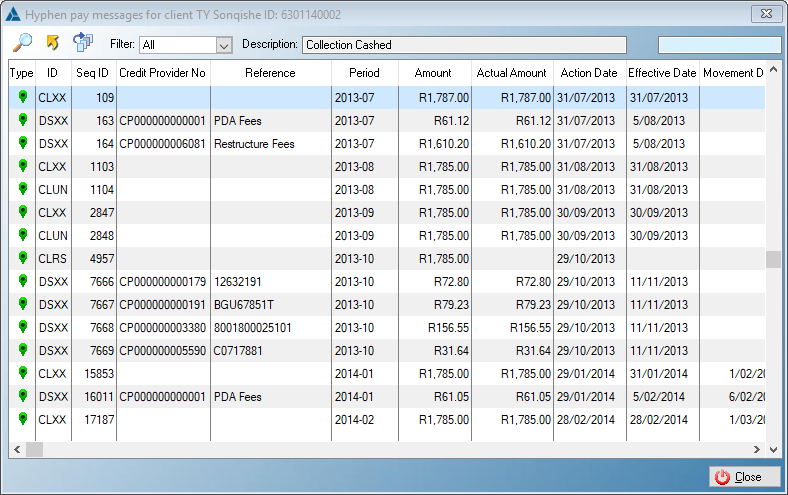
·This control displays the message history of the specific client's payment plan.
This is an example of the Hyphen Payment Messages Browse
oThis control allows the user to process the messages for the client.
Filter: oThe filter allows the user to filter the messages according to certain statuses, this will display the messages according to the statutes.
Description oThis field will display the description of the messaged that was processed. |


|
oThis control will allow a user to create a client batch using the current list of records on the respective browse §All desired filters can be applied to the browse to ensure that the list of records being displayed is in accordance with the batch the user would like to create §e.g §1. A user can select the Tree filter "Active Clients" -> "Collection Type" -> "Debicheck", this will display all clients with the collection type "DebiCheck" §2. The user can then use the "Batch From Filter" feature which will then open the Client Batch window with all the "DebiCheck" clients present and tagged. |

|
oThis feature allows a user to remove all the filters currently being applied on the client browse. §Filters such as the tree filters will be reset to default. §Filters such as "Per Branch", "Per Consultant", "Per Campaign" will be cleared §Advanced Search functions such as the "Search ID No" will be cleared §Other search functions such as Incremental search and sort search will also be cleared |
Payment Plan icons and Colours
|
·A legend is an area on a browse that displays an explanation of the icons found within payment plan browse. ·The legend is usually located at the bottom portion of the browse and in some cases has a designated tab.
|


Payment Suspension
|
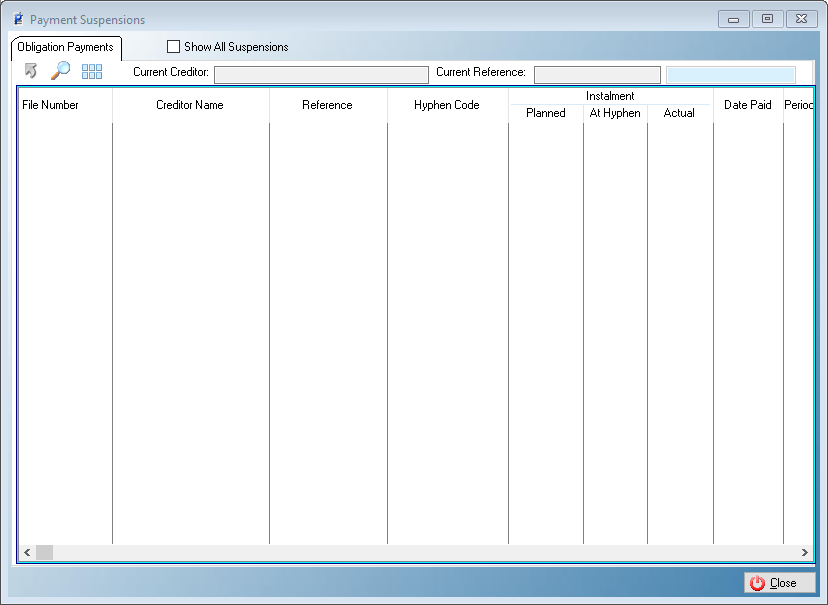
oThis window displays the payment suspensions of a selected client or all clients.
This is an example of the Payment Suspension
|
|
oThis toolbar allows the user to set up the security settings for feature or windows in Simplicity by clicking on the icon or feature that you want access granted or access denied. oThis will allow certain users to have access to certain features on the (*Subject*) browse.
This is an example of the Set Security Browse |