Security
Program Navigation: Main Menu > Security
|
Navigation: The User Interface > What is in Simplicity > Main Menu > Window > SecurityProgram Navigation: Main Menu > Security |
·This drop down list allows the user to insert new and additional users to the program.
·The user can also change their passwords from this list.
·Additional security can also be set for different features per user, this allows the user to set the limits a certain user has.
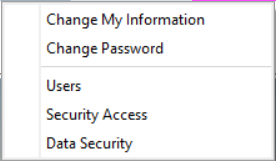
This is an example of the Security drop down list.
Click on the following headings to expand:
|
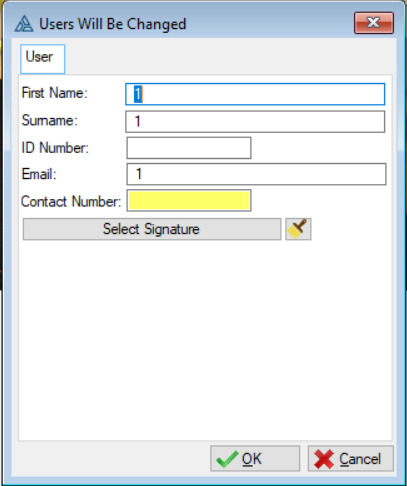
oThis option allows users to access and update their own information. oThis option is available because the users window is disabled for all operators.
The following is an example of the change my information form |
|
oWhen a user forgets their password a new password can be created for them. oAny user can change their password.
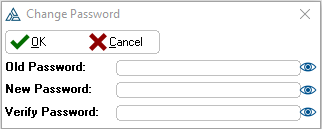
The following is an example of the change password form |
|
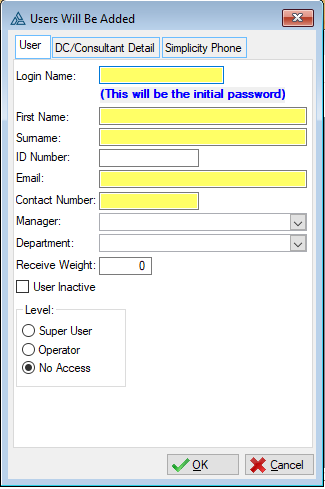
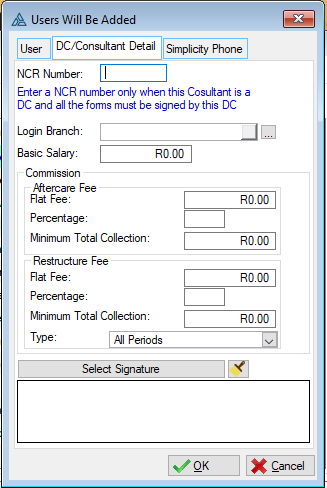
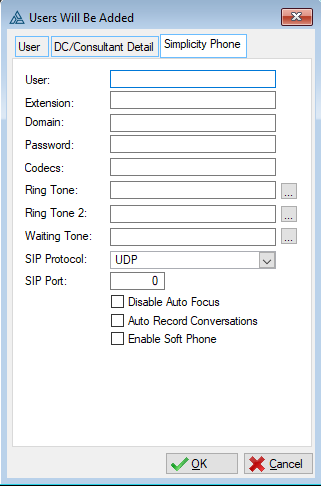
oFirst users are created for a superuser after a successful installation. oOnce the first user has logged into Simplicity, more users can be added. oThese additional users allow other employees to log in to Simplicity with their own Username and Password. oWhen a new user is created the password is the same as the Username, the password of the current user can be changed once the user has logged in. oWhen changes are made to certain features the Audit trail control will use the Username that has logged into Simplicity to identify the person that made the changes. oFor a company with multiple employees working on the system it is advised that additional users are created. oUser groups can also be added, but this will be discussed in the Security Section in the Help. o superuser user can reset the password of other users.
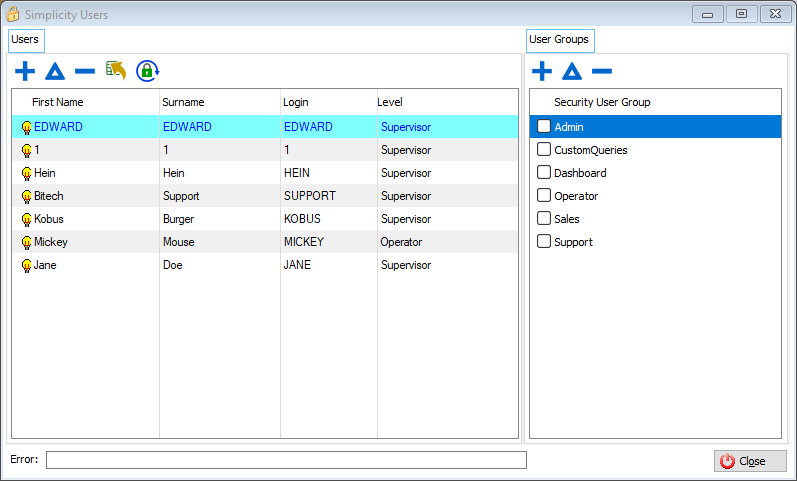
The following is an example of the user browse
The following is an example of the user form
|
|
oUser groups are added to add security to a large group of users. oThis allows the user to give certain access to a user. oThe user can select the groups the user belongs to and have access to. oUser groups are added for operators, superusers already have access to every feature in the program.
The following is an example of the user and user group browse
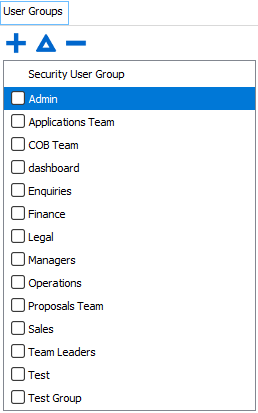
The following is an example of the user group browse |
|
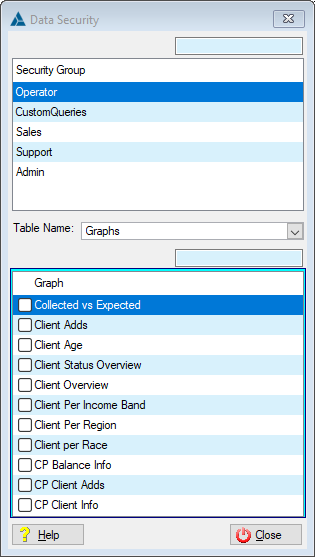
oAllows the user to select which graphs can be viewed by specific security groups (User Groups).
The following is an example of the Data Security Browse |
|
oWhen the user is on a certain feature in Simplicity there can be security set for this certain feature. oBy pressing Ctrl and F8 together this will open the Set security Access browse. oSecurity can be add for any feature in Simplicity for any user group that was added.
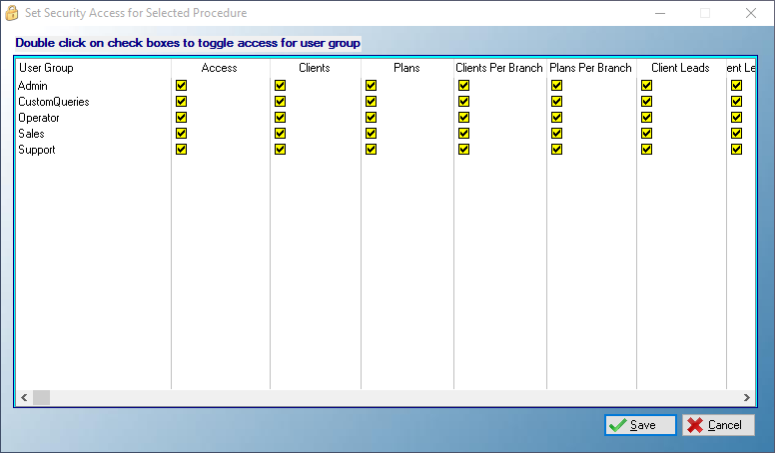
The following is an example of the Set Security browse
|
 Activate and Deactivate Security
|
oThe user can activate and set security for different features in Simplicity. ·
oThis control allows the user to activate the security feature which will allow the user to click on the toggle switch ·
o This switch allows the user to activate or deactivate the security for the current window. §
oThe Green informs the user that access is granted for this particular icon or feature. §
oThe Orange informs the user that access is denied for this particular icon or feature.
·
o This switch allows the user to Exit or Cancel the security for the current window or Dent Access for the current window. oWhen the Access is denied for the window the window will turn black. ·
oThis control allows the user to deactivate the security feature for the particular window and will exit the security. |

 and activate or deactivate the security for a current window.


