E-sign
|
Navigation: Simplicity Training > E-sign |
·yes me too The E-Sign feature in Simplicity will allow a user to upload a Form 16 or debit order mandate which can be digitally signed by a client though the operation of an easy-to-use website either on a mobile device or on a desktop computer.
Below are the steps involved in setting up and using the E-Sign feature:
·Step 1:
§The user must ensure that e-sign templates have been set up.
§Templates must contain the "Sign link" merged field and any other necessary information.
§Templates must be uploaded to the e-sign server by clicking on the Upload button.
·Step 2:
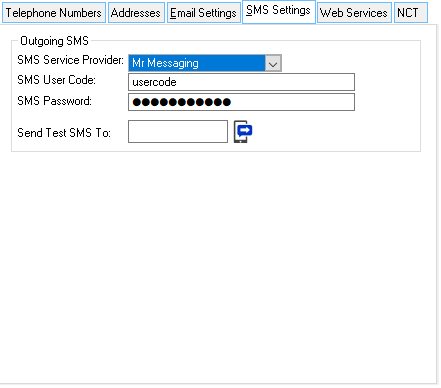
§The user must insert email server settings and SMS provider settings in master data.
·Register with our supported sms provider Mr Messaging.
oContact Alex at Mr Messaging (alex.lunn@mrmessaging.net) and reference Bitech in order to qualify for the discounted rate.
·Step 3:
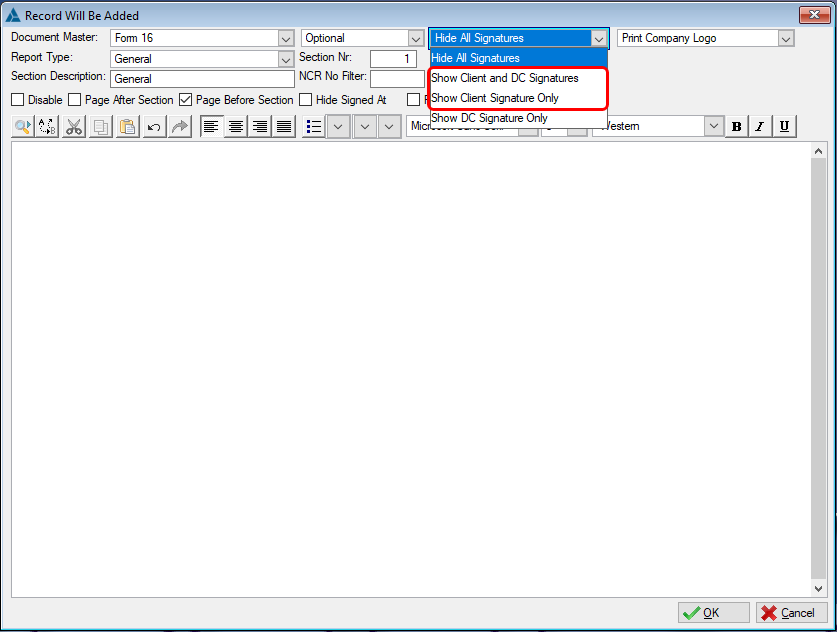
§The user must ensure that the form 16 has been set up with the signature enabled on the appropriate sections.
§The digital signature will be inserted on the sections where the client's signature is enabled.
·Step 4:
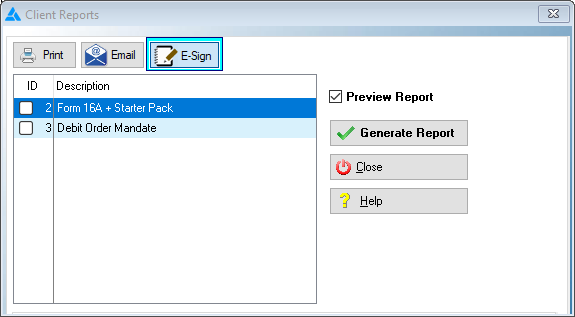
§The user can send the form 16 or debit order mandate notification via sms or email by clicking on the E-sign report button.
§The type of notification sent will depend on what the preferred communication is of the client (SMS or Email).
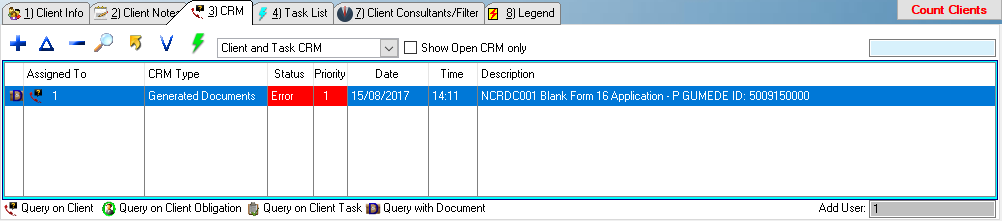
§This will then open a CRM form (Status: Open) where the user can make sure that the contact details and Form 16 document are correct before uploading the report and sending the E-sign notification to the client.
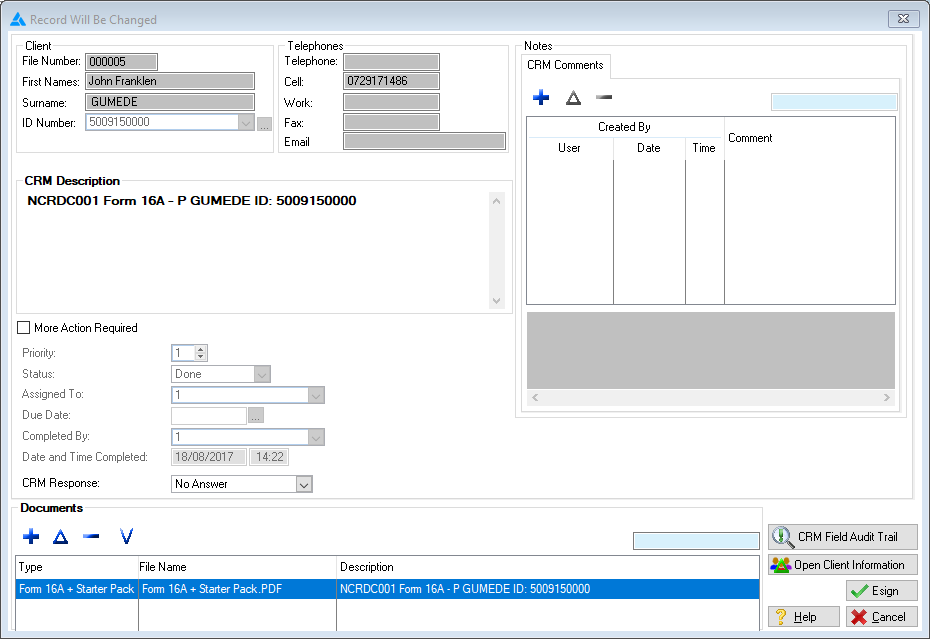
This is an example of the CRM Form
§Once the E-sign notification has been sent, the status of CRM record on the CRM tab on the Client Browse Tabs will change to "Waiting".
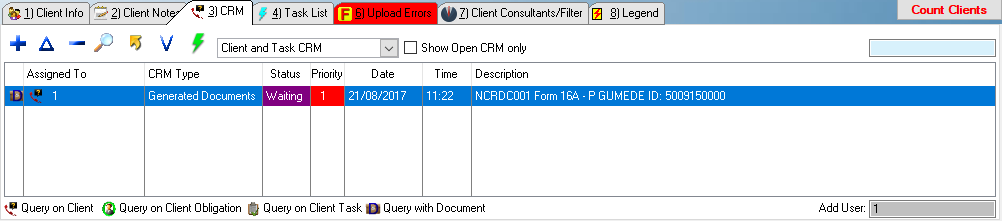
·Step 5:
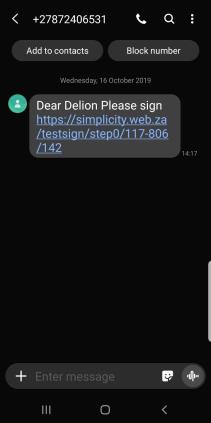
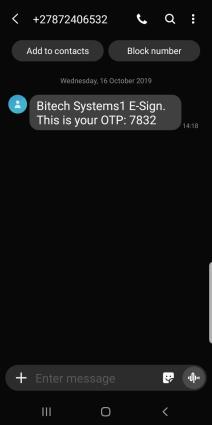
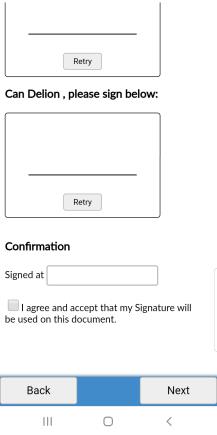
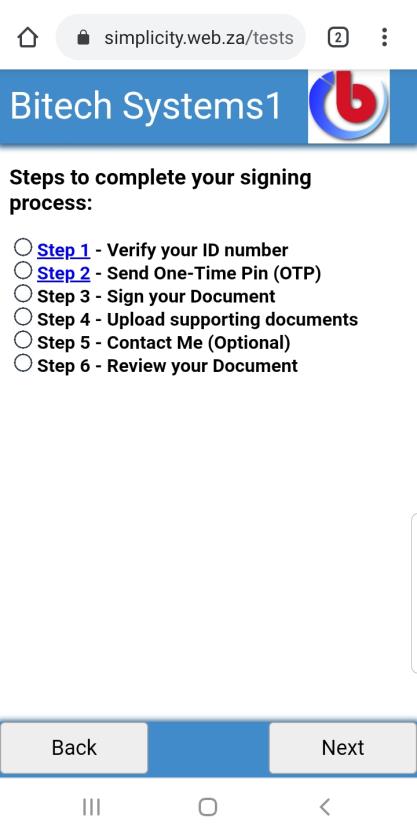
§The client will then receive the sms/email and follow the instructions to sign the document.
§
§
§
·Step 6:
§Once the client has signed the Form 16 or Debit Order Mandate and completed the process, that document and other corresponding documents will be uploaded, and can then be downloaded and inserted into the system via the Hyphen Download process or by pressing the download e-sign button
 on the client CRM tab.
§If, at any point, the client decides to ask for assistance through the website, an additional CRM record will be inserted upon Downloading from Hyphen which will display the message inserted by the client.
·Step 7:
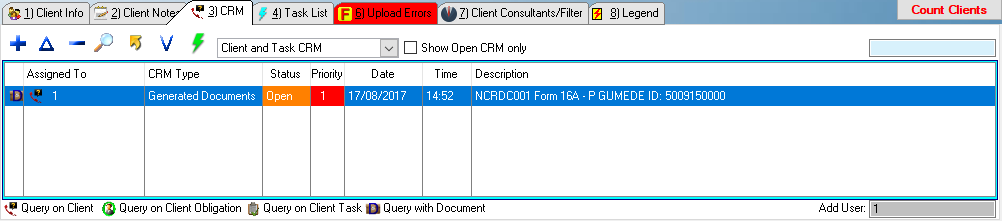
§Once the form 16 has been signed by the client the CRM status will change to "Open", this indicates that the user can now open and go through the attached documents such as "Copy of ID", "Copy of Payslip" and form 16 or debit order mandate.
§The open status can also indicate that the client has requested help regarding the E-Sign process, The CRM description and note will contain the client's message.
·Step 8:
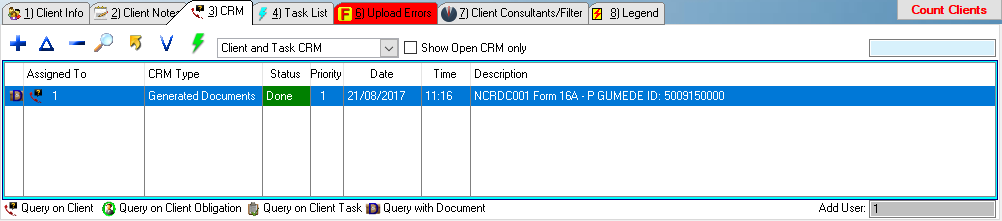
§Once the user is satisfied with the signed form 16 and supporting documents the CRM can then be completed and the status will change to "Done".
§If there was a fault with the CRM record, the CRM status will change to "Error", the CRM description and note will contain details of the fault.