Debicheck Process
|
Navigation: Simplicity Training > Debicheck Process |
·In order to use the DebiCheck feature a DC must be registered for DebiCheck with Hyphen.
·Thereafter Hyphen will inform the Simplicity system of the registration and the DebiCheck feature will be activated.
·Once registered, DebiCheck can be activated on each client individually.
·Please note only one mandate request at a time is allowed.
·Only one accepted recurring mandate at a time is allowed, any subsequent recurring mandate request will replace the exciting accepted recurring mandate once accepted.
Below are the steps involved when making use of the DebiCheck Feature, provided the DC is registered for DebiCheck:
·Step 1:
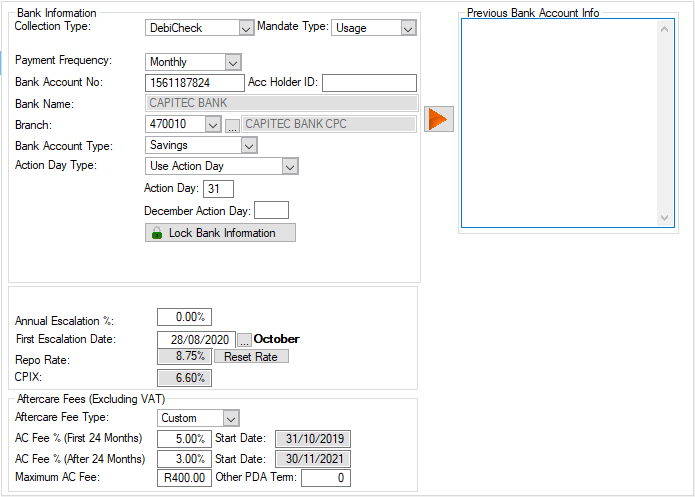
oGo to the Financials tab of the client.
oChange the client's Collection Type to DebiCheck.
oSelect the mandate type.
oEnsure the that all the clients financial's detail are correct.
oSave and close the client window.
·Step 2:
oA DebiCheck mandate must now be uploaded to Hyphen.
oA mandate request can be uploaded to Hyphen through one of the following methods:
oMethod 1:
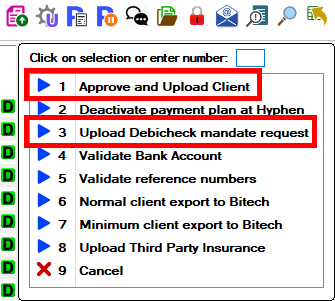
§Go to the client browse and upload the client to Hyphen.
·Select "Approve and upload the client".
·This will open the client's payment plan.
·Click on the Upload button.
·Or select "Upload DebiCheck Mandate Request"
Or
oMethod 2:
§Go to the Client's DebiCheck Mandates Request window and insert a new record.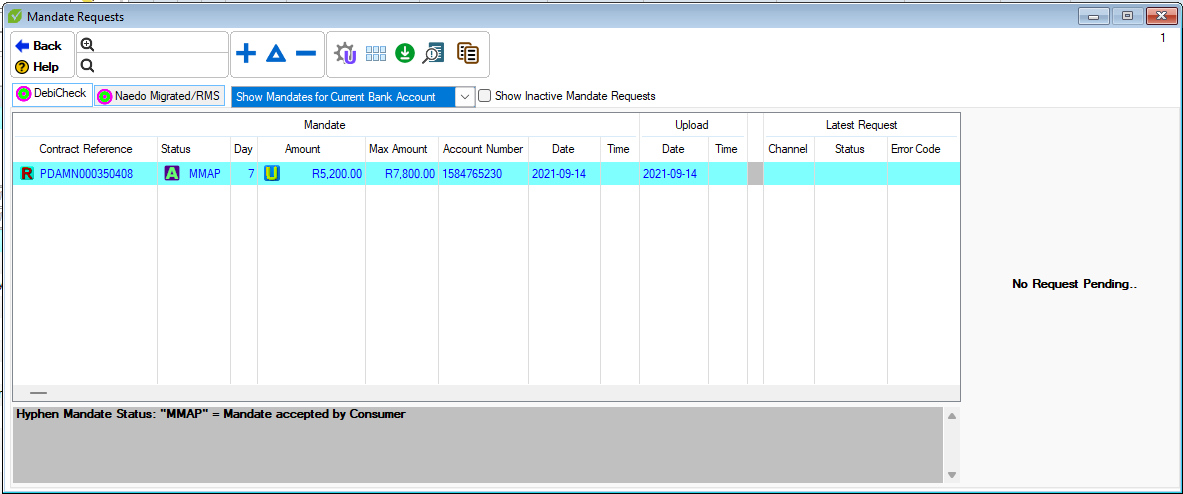
Or
oMethod 3:
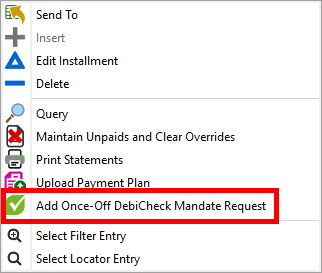
§Go to the client's Payment Plan, right-click on the period for which you wish to upload a Once-Off DebiCheck Mandate request, select the "Add Once-Off DebiCheck Mandate for the selected period" option.
·Step 3:
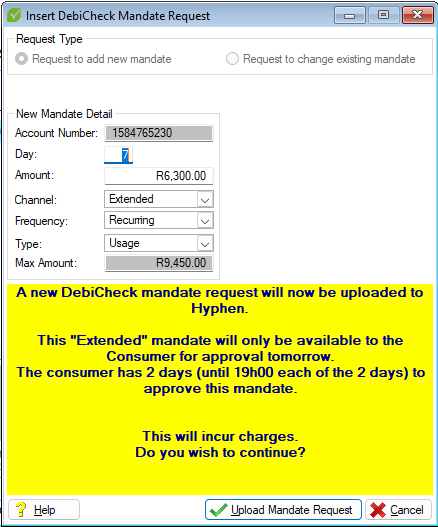
·Once one of the above-mentioned methods have been completed a Mandate Request window will appear.
·Ensure that the mandate details are correct, such as the day, amount, account number, mandate channel and Mandate Frequency.
·Accept the Mandate request.
·The mandate will now be uploaded to Hyphen
.
·Step 4:
oOnce successfully uploaded, the status of the mandate will be changed to "Mandate Requested".
oAs hyphen process the DebiCheck mandate request, further DebiCheck mandate requests will be received, DebiCheck mandate statuses are received from Hyphen through the Hyphen Download process.
oThe individual Mandate statuses for a client can be viewed on the Client's DebiCheck Mandates Request window.
oA list of clients per mandate status can be viewed on the client browse using the tree filter.
For details on how DebiCheck works on the client side, please visit https://debicheck.co.za/ for details.
Alternatively visit the DebiCheck page on Hyphen's websitehttps://www.hyphenpda.co.za/debicheck/.