General
|
Navigation: The User Interface > What is in Simplicity > Toolbar > Leads (Browse) > Lead Dashboard > Obligations > Obligation Form > General |
oThis form allows the user to insert basic obligation details such as the account type and reference number.
oThis form allows the user to change the status of the credit provider.
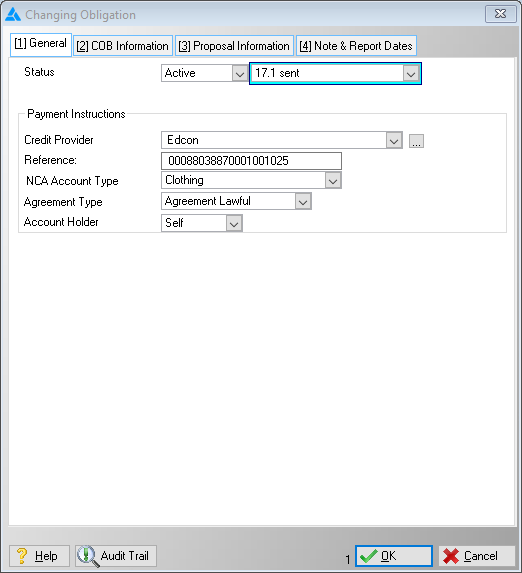
This is an example of the general tab
 The following can be found on the General Tab:
|
Status: oThis field allows the user to select a status for the obligation.
oActive: The creditor will appear on the proposal and plan as expected. oHold: The creditor will appear on the proposal but not on the plan. oCancelled: The creditor will not appear on the proposal or the plan.
·A few other statuses that affect the lead's proposal:
oCancelled: The creditor will not appear on the proposal or the plan. oFinal Offer Accepted: Used to perform a Final Universal Rule Set Validation oPaid Up: Used to mark the obligation as paid up which will insert a balance change of 0 for the selected Obligation, removing the obligation from the plan only. oProvisional Offer Accepted: Used to perform a Final Universal Rule Set Validation. oProvisional Offer Rejected: Used to perform a Final Universal Rule Set Validation.
·Reject Reason: oAllows the user to select a reason for the proposal rejection (appears only of "Provisional Offer Rejected" or "Final Offer Rejected" status is selected).
·Credit Provider: oThis field allows the user to insert a credit provider for the selected obligation (Payments will be made to this creditor).
·Reference: oAllows the user to insert a reference number used when making payments to the selected creditor.
·NCA Account Type: oThis field allows the user to select an NCA account type for the obligation (e.g. Bond, Credit Card, Personal Loan and Vehicle).
·Agreement Type: oThis field allows the user select the agreement type (e.g. Lawful, Unlawful and Reckless).
·Account Holder: oThis field allows the user to specify the account holder (e.g. self, spouse, both).
·Exclude From Debt Review: oThis box allows the user to exclude the obligation from debt review, this will also change the obligation's status to "Cancelled".
·Exclude Reason: oAllows the user to select a reason for the obligation's exclusion.
·Add to Expenses: oAllows the user to add the excluded obligation's "Original Gross monthly Instalment" to the lead's list of expenses on the budget.
·Expense Description: o Allows the user to select a description for the added expense.
·Calculation Method: oAllows the user to select how/if the obligations proposed figures should be calculated (Not available when using the Universal Rule Set rule set).
Payment calculation method: ·Allows the user to select a calculation method for the proposed instalment.
oCalculate Proposed Instalment: This will calculate the proposed figures according to the rule set selected. oLock Proposed Instalment: This will lock the proposed instalment to the amount currently inserted in the "Proposed Instalment" field effectively preventing the calculator from changing the proposed instalment. oUse Account Type Formula: This will calculate the proposed instalment according to the rule specified in the NCA Account Type master table for the corresponding NCA Account Type.
·Proposed instalment: oThis field allows the user to insert a proposed instalment amount, this will also change the calculation method to "Lock Proposed Instalment" (Not available when using the Universal Rule Set rule set).
·Interest rate: oThis field allows the user to insert a proposed interest rate. (Not available when using the Universal Rule Set rule set).
·Proposed Term: oThis field allows the user to view the proposed terms, cannot be altered. (Inserted by the proposal calculator).
·Proposal Start Date: oThis field allows the user to insert the date from which the obligation shall appear on the payment plan.
·PDA Payments Start Date: oThis field displays the earliest date on which the obligation appears on the PDA payment plan.
·Proposed Monthly Fees: oThis field allows the user to insert the proposed monthly fees, this amount will be subtracted to the amount allocated towards the outstanding balance.
·Copy From Monthly Fees: oThis will copy the amount inserted in the "Monthly Fees" field.
·Counter Proposal Instalment: oThis field allows the user to insert a counter proposal Instalment amount, this will not affect the proposal.
·Counter Proposal Interest Rate: oThis field allows the user to insert a counter proposal interest rate, this will not affect the proposal. |
General Features available in this window:
Ø Look Up
Ø Calendar