|
·
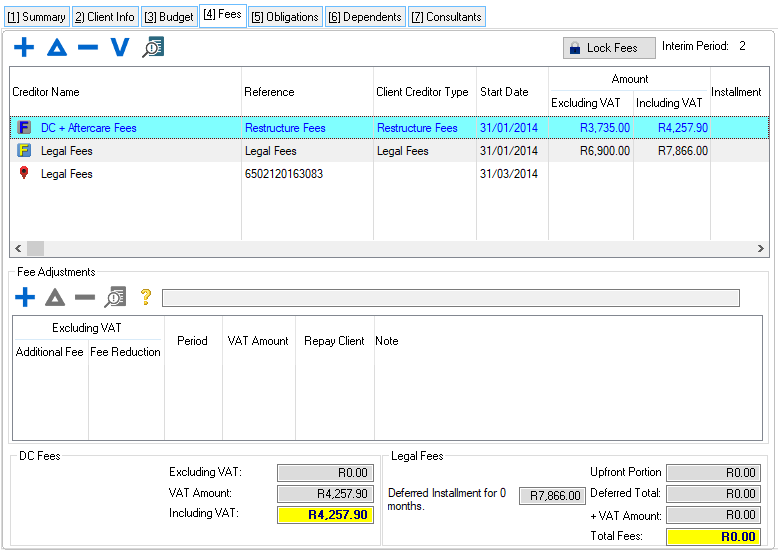
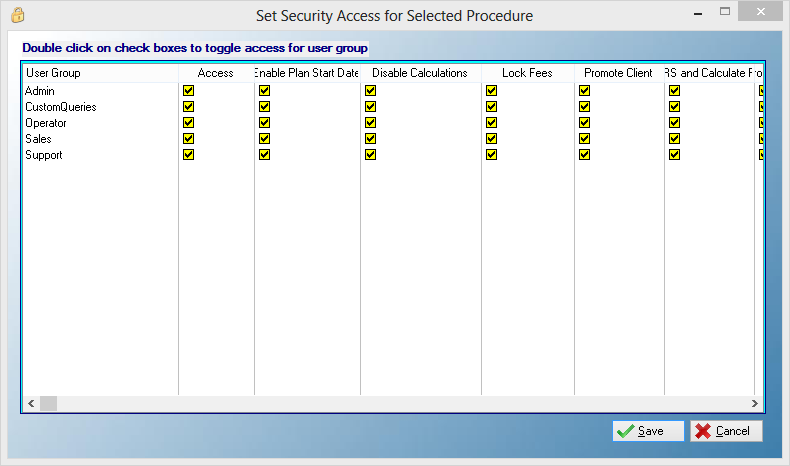
 Lock Fees: Lock Fees:
oThis control allows the user to lock the fees by preventing changes and disabling features that will cause the fees to change.
·Ignore fees already paid in the past:
oThis feature will ignore all previously paid fees when generating the proposal
oIf the start date of the client's proposal is in the past and/or if fees have already been paid in previous months on the payment plan prior to generating the proposal, the proposed fee amounts in those months will be subtracted from the total outstanding fee amount.
oIf this feature is used, the previously proposed fee amounts will not be considered paid and will not be subtracted from the total outstanding fee amount effectively displaying the full fee amount as outstanding regardless of the proposal's start date.
§e.g.
·Proposal start date 31/01/2019
·Current date 15/02/2019
·One month has passed before generating proposal (Changing proposal status to Provisional or Final)
·Fee totals:
oRestructure Fees - R4000
oAdmin Fee - R300
oApplication Fee - R50
oLegal Fees - R5000
·Fee breakdown:
oMonth 1:
oAdmin Fee - R300
oApplication Fee - R50
oRestructure Fees - R3625
·Outstanding Fees on generated proposal:
o(Without using feature)
oRestructure Fees - R375
oLegal Fees - R5000
·(With use of feature)
·Restructure Fees - R4000
·Legal Fees - R5000
·Totals:
oThese fields display the total restructure and legal fee amounts for the client's plan.
oFee records cannot be edited once the client has been uploaded to the PDA, only fee adjustments can be inserted.
Restructure Fees:
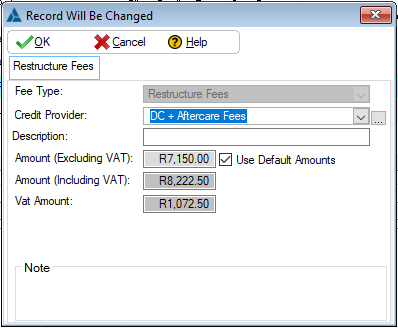
·Fee Type:
oThis field displays the type of fee that will be added.
·Credit Provider:
oThis field displays the credit provider that will be used.
·Description:
oThis field allows the user to insert a description for the fees.
·Amount (Excluding VAT):
oThis field displays fee the amount excluding vat.
·Amount (Including VAT):
oThis field displays the fee amount including VAT (The total fee amount).
·VAT Amount:
oThis field displays the VAT amount for the fee
·Use Default amount:
oThis check box allows the user to specify whether or not the default fee amount must be used, the default amount is specified in the Fee Master Table.
oDefault amount fees will be disabled when two proposal instances are also disabled when uploaded.
Legal Fees:
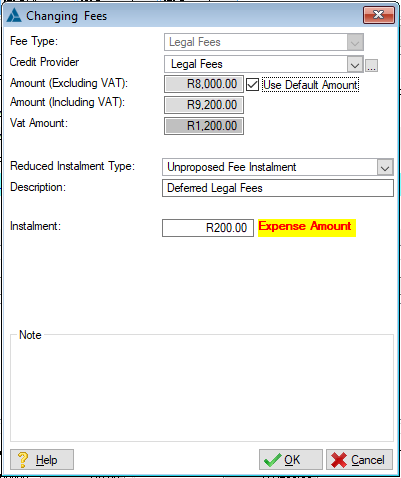
·Fee Type:
oDisplays the type of fee the user is editing.
·Credit Provider:
oAllows the user to insert the creditor to which the Legal fee payments will be made (Can also be changed on the Master Fee Table).
·Amount (Excluding VAT):
o Allows the user to insert a fee amount excluding the VAT figure, is automatically inserted if the "Amount (Including VAT)" is inserted.
·Amount (Including VAT):
oAllows the user to insert a fee amount including the VAT figure, is automatically inserted if the "Amount (Excluding VAT)" is inserted.
·VAT Amount:
oDisplays the VAT amount for the fee.
·Reduced Instalment Type:
oThis field allows the user to select a reduced instalment for the fees after period three or after the upfront portion paid .
·Instalment:
oThis field allows the user to insert the instalment.
·Description:
oThis field allows the user to insert a description for the fees.
oThis description will be used as the expense description if the "Reduced Instalment After Period 3" feature is used.
o If a description is not inserted, "Legal Fees" will be used as the description.
·Note:
oAllows the user to insert a note for the Legal fee record.
Application Fee:
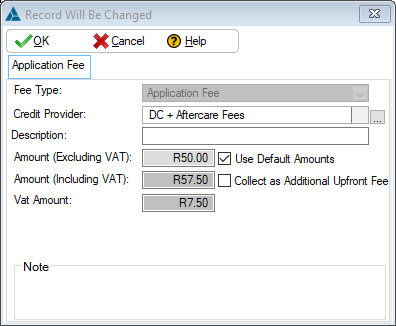
·Fee Type:
oThis field displays the type of fee that will be added.
·Credit Provider:
oThis field displays the credit provider that will be used.
·Description:
oThis field allows the user to insert a description for the fees.
·Amount Excluding VAT:
oThis field displays fee the amount excluding vat.
·Amount Including VAT:
oThis field displays the fee amount including VAT (The total fee amount).
·VAT Amount:
oThis field displays the VAT amount for the fee
·Use Default amount:
oThis check box allows the user to specify whether or not the default fee amount must be used, the default amount is specified in the Fee Master Table.
oDefault amount fees will be disabled when two proposal instances are also disabled when uploaded.
·Collect as Additional upfront Fee:
oThis will remove the application fee from the proposal and insert it as an additional payment on the payment plan.
Administration Fee:
·Fee Type:
oThis field displays the type of fee that will be added.
·Credit Provider:
oThis field displays the credit provider that will be used.
·Description:
oThis field allows the user to insert a description for the fees.
·Amount Excluding VAT:
oThis field displays fee the amount excluding vat.
·Amount Including VAT:
oThis field displays the fee amount including VAT (The total fee amount).
·VAT Amount:
oThis field displays the VAT amount for the fee
·Use Default amount:
oThis check box allows the user to specify whether or not the default fee amount must be used, the default amount is specified in the Fee Master Table.
oDefault amount fees will be disabled when two proposal instances are also disabled when uploaded.
·Collect as Additional upfront Fee:
oThis will remove the application fee from the proposal and insert it as an additional payment on the payment plan.
|
 0
0
 The following can be found on the fees window:

 Insert
 Change
 Delete