oThis form contains various tabs which allow the user to insert and edit the Income, deductions and expenses of the client.
oThe affordability (monthly payment) of the client is determined through adding and subtracting the values contained in the various budget tabs.
oAn estimated Minimum proposal solve amount is also displayed on the budget window
oAn audit trail has also been added to the budget browse.
oThe default records displayed in each tab can be updated in the master data or on the budget master.
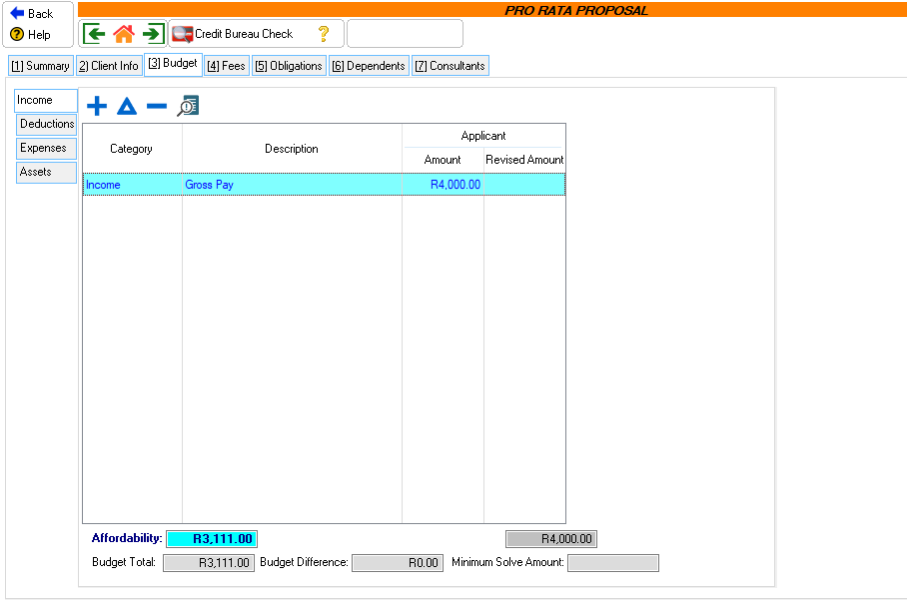
This is an example of the Client Info tab
|
 Income Income
|
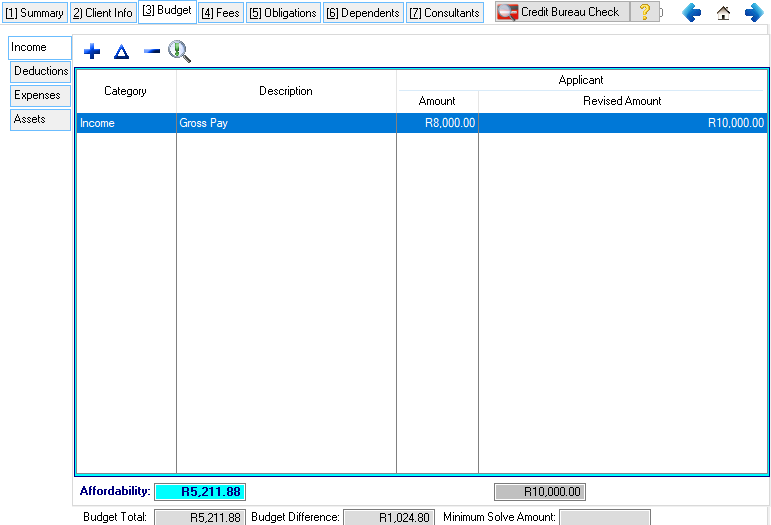
oThis browse allows the user to insert/edit the client's monthly income.
oThis browse allows the user to insert/edit the client's and/or spouses monthly income.
oAdditional sources of income can be added if applicable (Rent income, Maintenance).
oA total Income figure is also displayed at the bottom of the tab.
oThe total deductions and expense figures is subtracted from the total income figure in order to create the affordability amount.
This is an example of the Income tab
|
Deductions
|
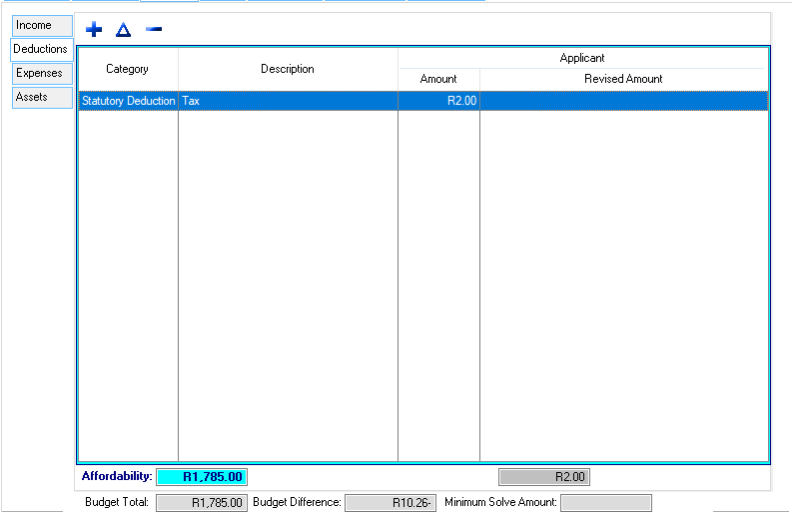
oThis browse allows the user to insert/edit the client's monthly deductions.
oThis browse allows the user to insert/edit the client's and/or spouses monthly deductions.
oAdditional deductions can be added if applicable.(Life insurance, Retirement Plan)
oA total deductions figure is also displayed at the bottom of the tab.
oThe total deductions figure is subtracted from the total income figure in order to create the affordability amount.
This is an example of the deductions tab
|
Expenses
|
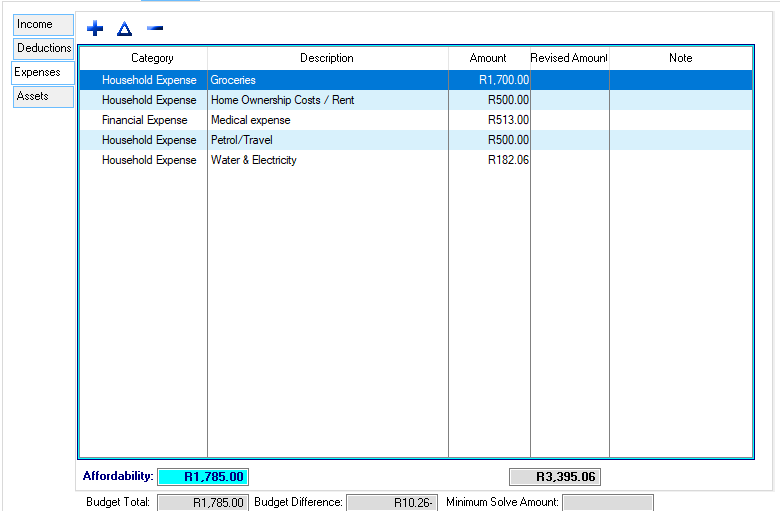
oThis browse allows the user to insert/edit the client's monthly expenses.
oAdditional expenses can be added if applicable.(Internet, Clothing)
oA total expenses figure is also displayed at the bottom of the tab.
oThe total expense figure is subtracted from the total income figure in order to create the affordability amount.
This is an example of the expenses tab
|
Assets
|
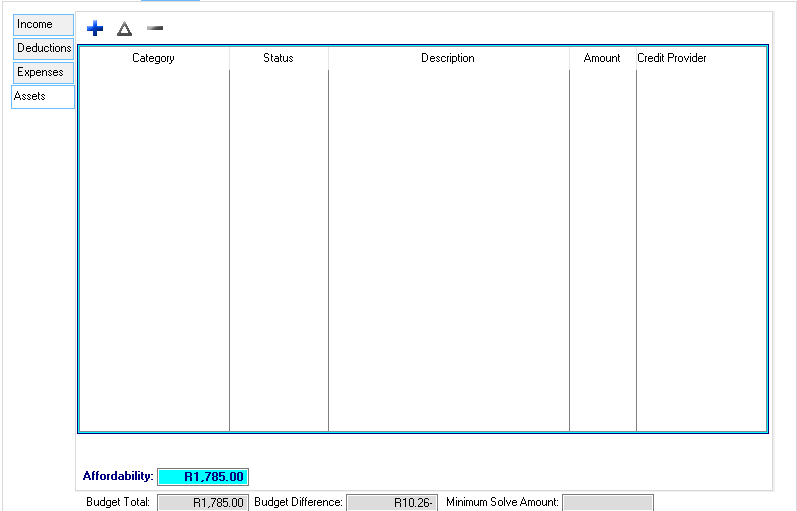
oThis browse allows the user to insert any assets that the client owns.
oThis browse allows the user to insert/edit the client's assets
oAssets do not affect the Affordability of the client.
This is an example of the Assets tab
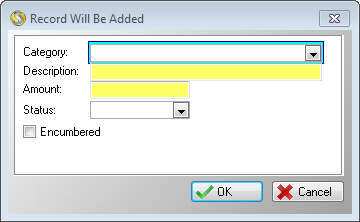
This is an example of the assets form
The following can be found on the Asset window:
|
·Category:
oAllows the user to select a category for the Asset.
·Description:
oAllows the user to insert a Description for the Asset.
·Amount :
oAllows the user to insert the value of the Asset.
·Status:
oAllows the user to select the status of the Asset.
·Encumbered:
o Allows the user to mark the Asset as encumbered, also makes a "Credit Provider" field available to edit.
·Credit Provider:
oAllows the user to insert the credit provider, only available if the asset is "Encumbered".
|
|
|