Client Summary
|
Navigation: The User Interface > What is in Simplicity > Toolbar > Clients (Browse) > Client Dashboard > Client Summary |
oThis window allows the user to view the basic information of the client as well as a summary of the financial and proposed figures
oThis window also displays an error list (when applicable) outlining a list of criteria not yet fulfilled in order to successfully validate a Universal Rule Set proposal or save the client file and generate a plan, double clicking on a specific error will navigate the user to the relevant window and/or feature.
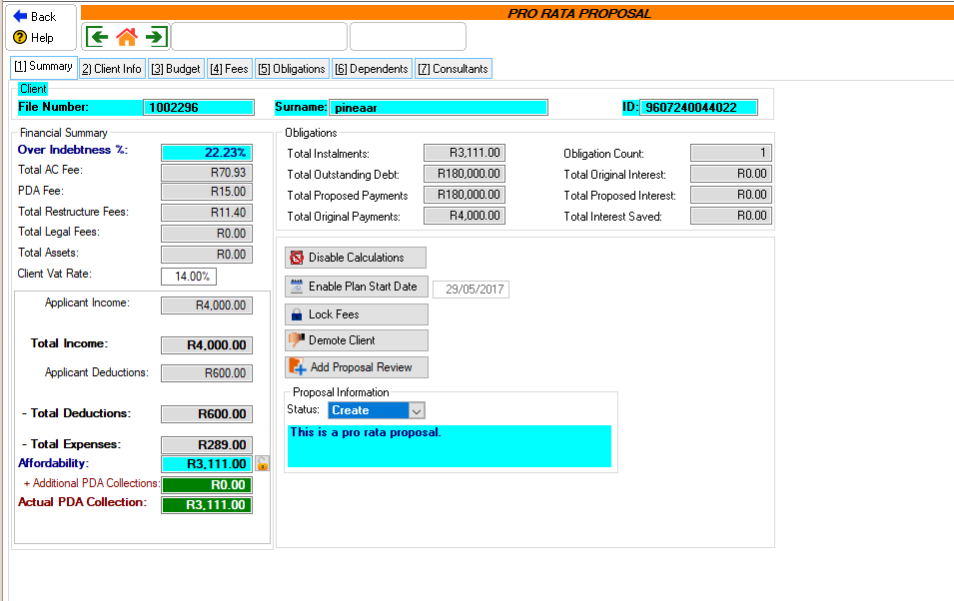
This is an example of the summary tab
 The following can be found on the Summary window:
|
oThis control allows the user to insert an affordability amount and prevent the system from calculating the affordability automatically (the client cannot be saved successfully as long as this control is active.
·
oThis control will disable certain features and will prevent changes to fields that would cause the proposal to calculate, effectively locking the proposal.
·
oThis control allows the user to hide the Error list so a validation can be done and any features that are covered by the Error list. oNote that this control does not fix the errors, it only hides the errors and attention must still be given to the errors.
·
oThis control will enable the "Plan Start Date" field which will allow changes to the date to be made.
·Plan Start Date: oThis field allows the user to insert/edit the plan start date of the client, this will also change the proposal start date of all the client's Obligations and this date cannot be later than the earliest date uploaded to the PDA.
·
oThis control will disable certain features and will prevent changes to fields that would cause the Fees to change
·
oThis control will change the client status from "Client" to "Lead", this will also move the client to the "Leads" list (Only available if "Client Phases" option is not active).
·
oThis control allows the user to add a revised proposal.
·Client VAT Rate: oThe VAT Rate of the selected client.
oProposal information allows the user to select the status of the proposal and rule set of the proposal. oThe user can also generate the proposal from the "Proposal Information" window. oThe following can be found on the proposal window:
·Proposal Status: o Allows the user to select the status of the client's proposal, this also determines what actions can be performed on the client's proposal. oSee "Building a Proposal" for details on the effect each status has on the actions allowed to the user. oCreate: The "Create" status informs the user that the proposal is busy being created and allows changes to be made to the proposal. oThis status allows the user to find a solve if needed. (See "Proposal Sandbox") oProvisional and Final:The "Provisional" Status informs the user that the proposal has been or is ready to be sent to the creditors. oThis status also allows counter proposed figures to be inserted oThis status also allows the user to obtain a DCRS ID if no overrides are present.
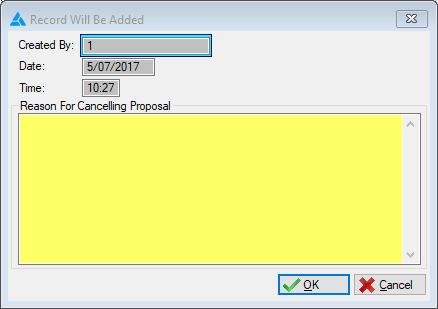
·When changing the proposal status of a client from provisional to create, a reason for the change must now be inserted this reason will be added to the Client Note.
|