Workflow
|
Navigation: The User Interface > What is in Simplicity > Toolbar > Workflow (Phase 1) > Workflow |
·This window allows a user to manage various documentation and communication templates used in the program
·The workflow also include a communication system which will allow the user to manage outgoing and incoming communications.
·The workflow groups specific items together as tickets, allowing the user to track various processes.
·The workflow also includes customizable documentation which includes merge fields to create templates.
·Client and creditor tasks as well as the communication types (such as Email, SMS, Calls) available for each task can be maintained here
·The documents for each task can also be inserted here, such as mail merge documents, imported documents.
·The communication templates for various DC reports can also be maintained here.
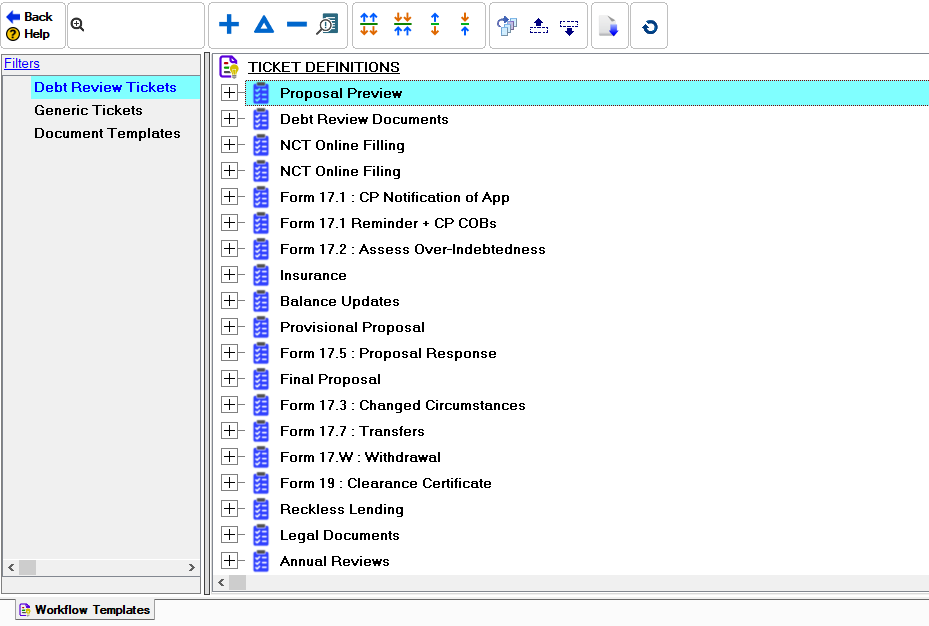
This is an example of the workflow browse
Click on the link to expand the topic:
 The Following can be found on the Workflow Tree:
|
·
oThis button will expand all the groups on the tree.
·
oThis button will collapse all the groups on the tree.
·
oThis button will expand the highlighted branch on the tree.
·
oThis button will collapse the highlighted branch on the tree.
·
oThis button will collapse the highlighted branch on the tree.
·
oThis button will display all the templates for an action.
·
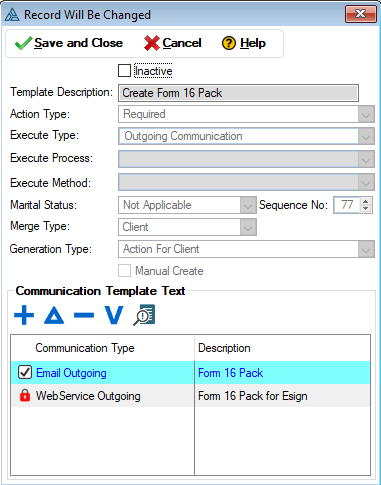
oThis form displays the details for the behavior of the tasks. oThis form also allows the user to set up the communication templates for the specific task.
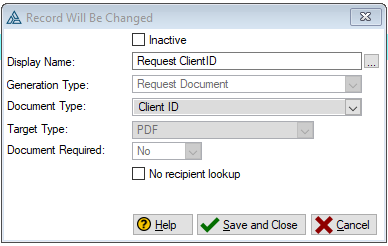
oThis allows the user to manage all the various documents contained in the task by either inserting a n existing document or by editing or creating a merge document.. oThis is either a single document or a batch of documents that are attached to the various communication types that have been inserted for this workflow action. oMerge fields can also now be inserted for the display name, this will insert the details
·
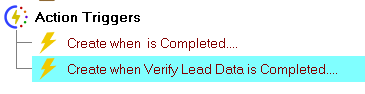
oThis is a grouping of different rules that defines how and when the action is performed.
|