|
·Disable Proposal Cascading(Straight Line Proposal):
oThis tick box allows the user to remove cascading form the proposal to the credit provider, but the actual plan will always cascade. ( Activated by default)
·Calculation method:
oAllows the user to select a calculation method for the proposed instalment.
oTask Team Rule Set Calculation: This will calculate the proposed amount according to the Universal Rule Set calculator.
oOverride Instalments and Interest: This allows the user to override the proposed instalment and/or interest rate of the obligation.
oUse Account Type Formula: This will calculate the proposed instalment amount according to the rule specified in the NCA Account type master table of the corresponding account type.
·Proposed instalment:
oThis field allows the user to view a proposed instalment amount, this will also change the calculation method to "Lock Proposed Instalment" (Not available when using the Universal Rule Set rule set).
·Interest rate:
oThis field allows the user to view a proposed interest rate. (Not available when using the Universal Rule Set rule set).
·Interest amount:
oThis field allows the user to view the monthly proposed interest amount.
·Proposed Term:
This field allows the user to view the proposed terms, cannot be altered. (Inserted by the proposal calculator).
·Proposal Start Date:
oThis field will display the start date of the proposal instance to which the obligation will be linked to.
oAll start dates are linked to the client proposal start date.
·PDA Payments Start Date:
oThis field displays the earliest date on which the obligation appears on the PDA payment plan.
·Proposed Monthly Fees:
oThis field allows the user to insert the proposed monthly fees, this amount will be subtracted to the amount allocated towards the outstanding balance.
·Copy From Monthly Fees:
oThis will copy the amount inserted in the "Monthly Fees" field.
·Counter Proposal:
oThis feature allows the user to select counter options (Only available when the client's proposal status is "Provisional").
§Proposal Offer Accepted by CP: This indicates that no counter proposal has been received.
§
 Counter Offer Received: This indicates that a counter proposal has been received and will make the counter instalment and interest rate fields available for use. Counter Offer Received: This indicates that a counter proposal has been received and will make the counter instalment and interest rate fields available for use.
§
 Counter Offer Accepted by DC: This indicates that the counter proposal has been accepted, any figures inserted in the counter instalment and interest rate fields will also be copied over to the proposed instalment and interest rate fields. Counter Offer Accepted by DC: This indicates that the counter proposal has been accepted, any figures inserted in the counter instalment and interest rate fields will also be copied over to the proposed instalment and interest rate fields.
§
 Counter Rejected by DC: If the counter proposal status was previously accepted, this will indicate that a counter proposal was rejected, any figure currently inserted in the proposed interest rate field will be restored to the original COB figure. Counter Rejected by DC: If the counter proposal status was previously accepted, this will indicate that a counter proposal was rejected, any figure currently inserted in the proposed interest rate field will be restored to the original COB figure.
§
 Offer Rejected by CP: If the counter proposal status was previously accepted, this will indicate that a counter proposal was rejected, any figures currently inserted in the proposed interest rate field will be restored to the original COB figure. Offer Rejected by CP: If the counter proposal status was previously accepted, this will indicate that a counter proposal was rejected, any figures currently inserted in the proposed interest rate field will be restored to the original COB figure.
§
 No Response from CP: If the counter proposal status was previously accepted, this will indicate that a counter proposal was rejected, any figure currently inserted in the proposed interest rate field will be restored to the originally COB figure. No Response from CP: If the counter proposal status was previously accepted, this will indicate that a counter proposal was rejected, any figure currently inserted in the proposed interest rate field will be restored to the originally COB figure.
§
 Rework: This allows the user to edit the proposed installment and interest rate. Rework: This allows the user to edit the proposed installment and interest rate.
·Counter Proposal Instalment:
oThis field allows the user to insert a counter proposal Instalment amount, this will not affect the proposal but will be inserted into the proposed instalment field if the counter proposal status is changed to accepted.
·Counter Proposal Interest Rate:
oThis field allows the user to insert a counter proposal interest rate, this will not affect the proposal but will be inserted into the proposed interest rate field if the counter proposal status is changed to accepted.
·Exclude From Debt Review:
oThis box allows the user to exclude the obligation from debt review, this will also change the obligation's status to "Canceled".
oWhen a user wants to exclude an obligation from debt review that is already paid up, the user must change the status first.
oA "Paid Up" obligation cannot be excluded or canceled.
·Exclude Reason:
oAllows the user to select a reason for the obligation's exclusion.
·Add to Expenses:
oAllows the user to add the excluded obligation's "Original Gross monthly Instalment" to the client's list of expenses on the budget.
·Linked Insurance:
oThis type allows the user to insert linked insurance for the selected obligation.
|
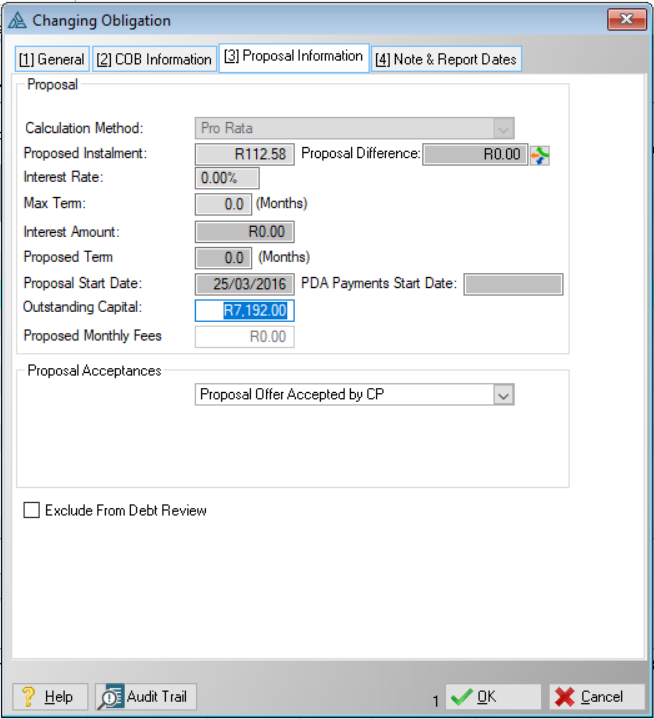
 The following can be found on the Proposal Information Tab: