NCT Webservice
|
Navigation: Simplicity Training > NCT Webservice |
There are a few steps involved in using NCT:
·The Company/DC must be registered with the NCT.
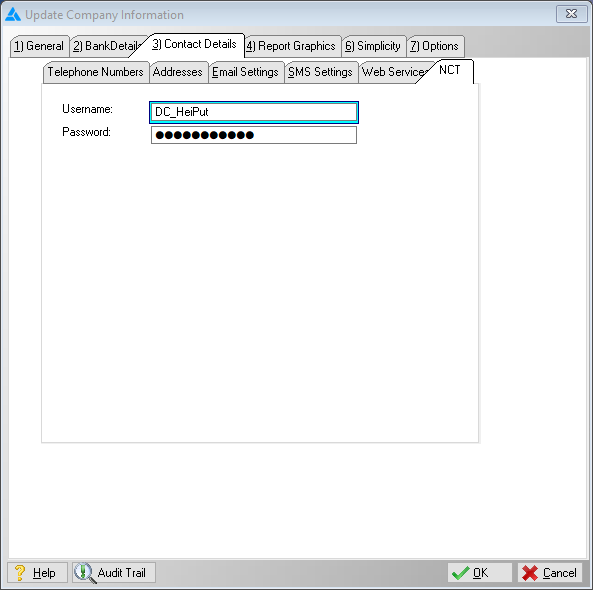
·Once registered with the NCT the details can be set up in the Master Data - Company Parameters - Contact details - NCT.
·Once all the details have been inserted the feature will be available when printing the NCT Application Report on the Client Reports.
oThis will create a Client CRM when generating an "NCT Application".
·Once the the CRM is created the status will change from "Busy" to "Waiting".
·The user must then view the documents and add all supporting documents.
·The application can then be sent.
·For any details on the progress and status of an application, visit the NCT website, access and log into the Case Management System https://cms.thenct.org.za/
·Below are the steps involved in setting up and using NCT feature:
·Step 1:
oOnce the NCT registration is done, the user can insert their NCT Setting into Company Parameters".
oOnce all the details have been inserted the feature will be available.
·Step 2:
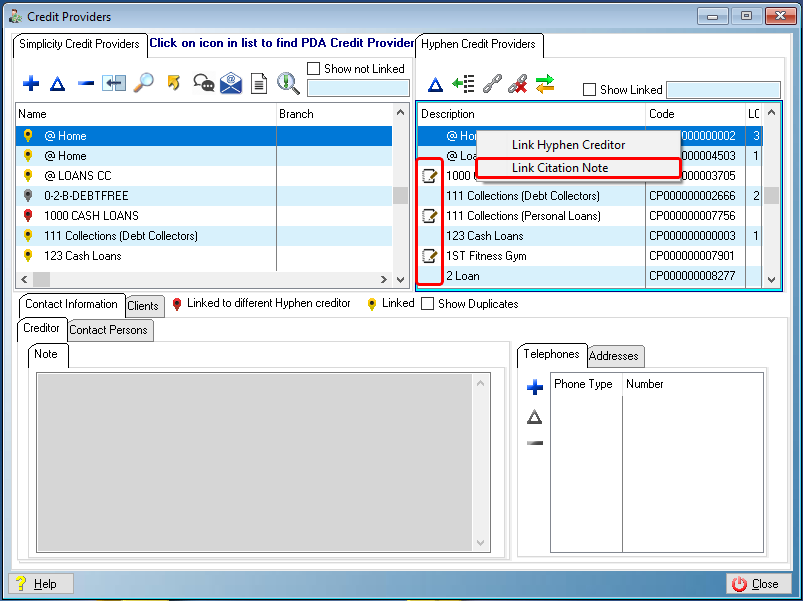
oThe citation notes must be linked to the Hyphen creditors.
oAn updated list of NCT creditors will be downloaded once a Hyphen Download has been done after the NCT details have been inserted.
·Step 3:
oThe NCT application process can be initiated by generating an NCT application report using the client reports feature.
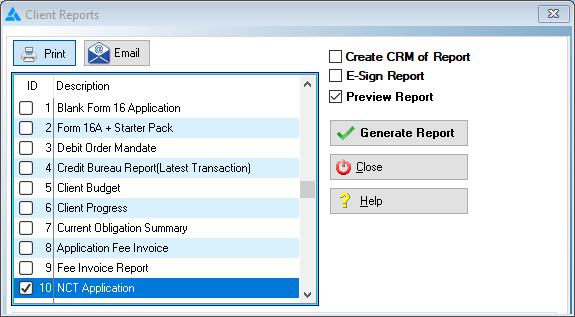
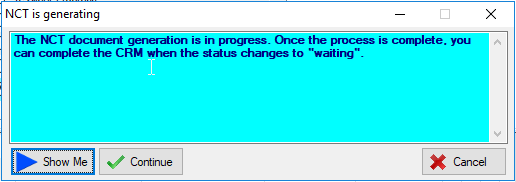
o If there are any obligation creditors for this client that are not linked to an NCT creditor refer to Step 2 to rectify.
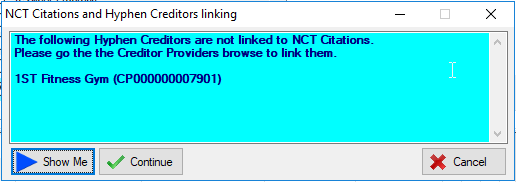
oOnce all the clients obligation creditors for this client have been linked to an NCT creditor, a consent to service check will be done.
§ If any creditors have not given consent to service a CRM record will be created for each creditor and they will be listed will in the message below.
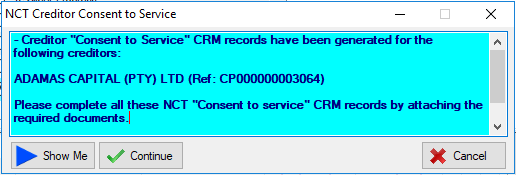
oIn order to send the Consent to Service go to the generated CRM for the creditor and attach the completed consent to service document.
§ "Consent To Service" form can be obtained either from the NCT website or is usually incorporated into the COB previously received from the Credit Provider.
oOnce the Consent To Service document has been attached these documents will then be sent to the NCT for validation, you should receive an email from the NCT upon validation.
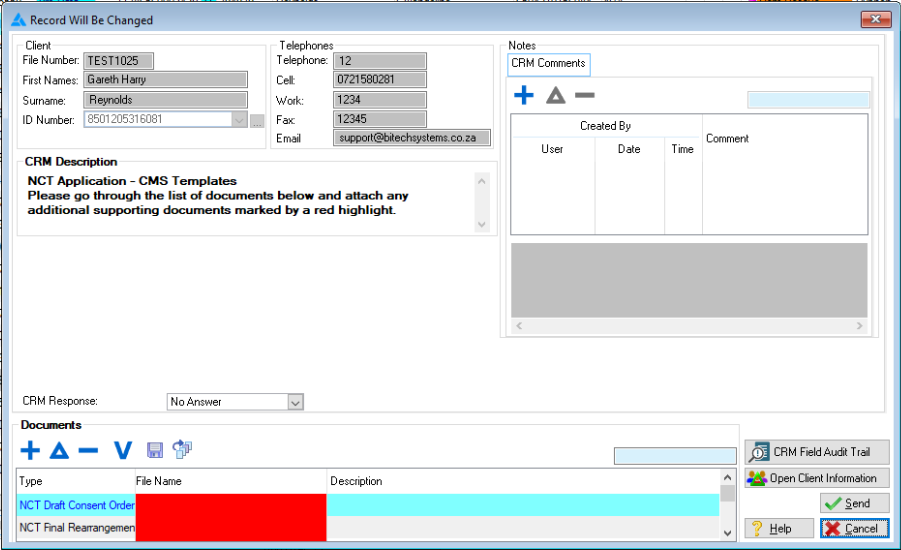
·Once all Consent To Service documents has been validated the merging process shall continue.
·Step 4:
oOnce the merging is done, the CRM status will change from "
 " to "
 ".
".
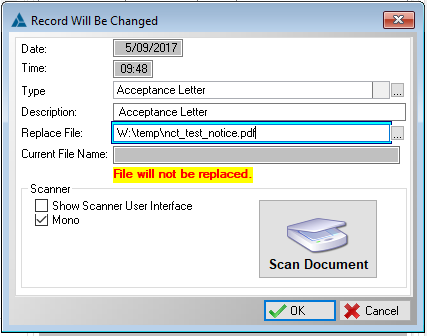
oThe user must then view the crm and it's documents and add any other supporting documents as necessary.
oThe CRM can then be sent.
oIf any errors are experienced refer to the NCT Troubleshooting step of this topic.
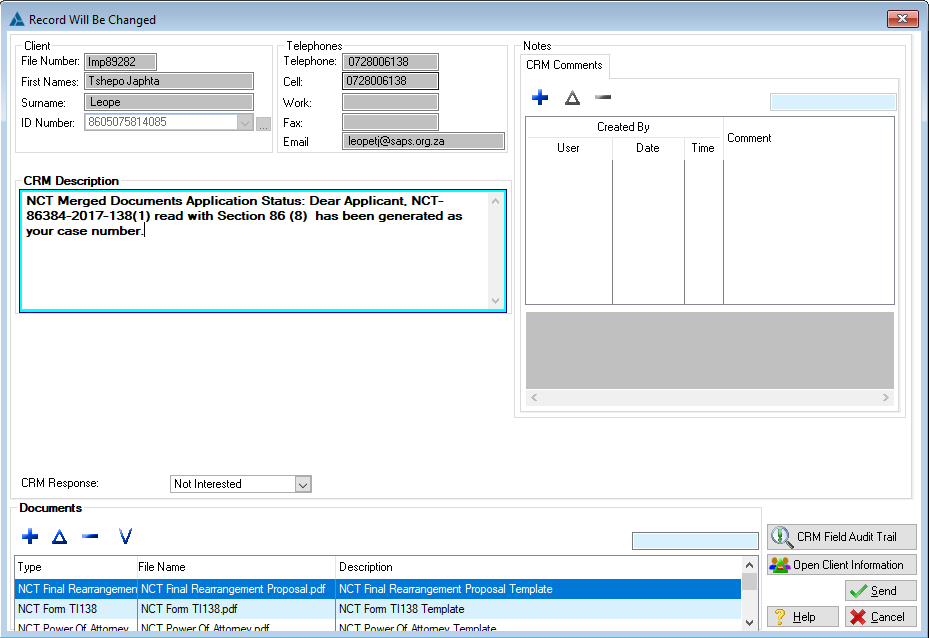
oOnce the CRM has been successfully sent the CRM status will change from "
to
 ".
".
oA response as well as a case number will be inserted in the CRM description.
·NCT Troubleshooting:
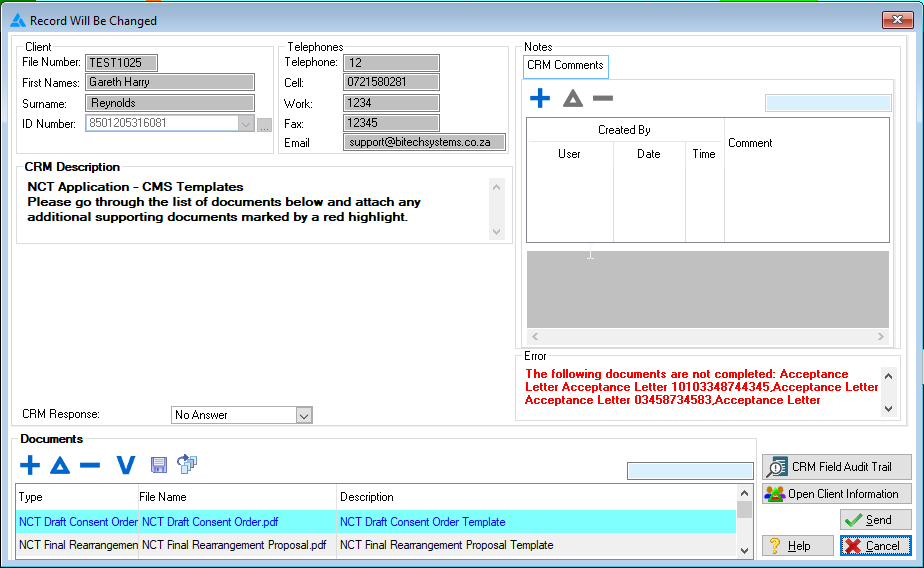
oIf there are any errors from the NCT, the CRM record will be flagged as an error, the details of the error can be viewed by accessing the CRM record.
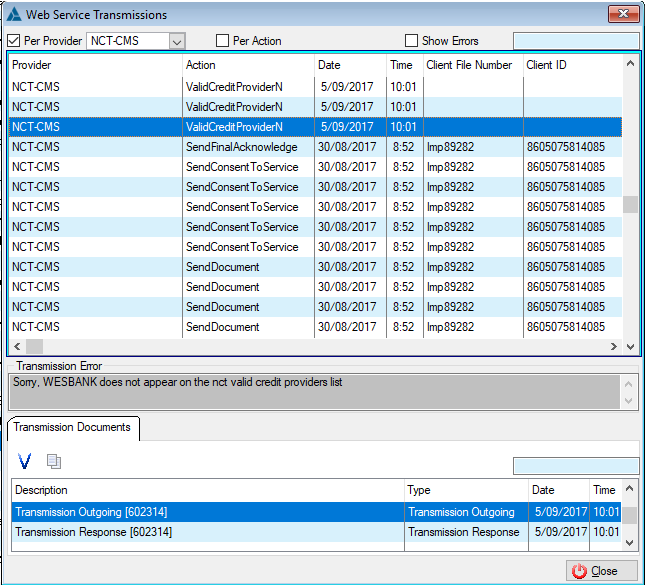
oThe NCT communication can be viewed or tacked by using the "Web Service Transmissions" window.
oAny communication errors will also be displayed here.