Softphone
|
Navigation: Simplicity Training > Softphone |
·The Softphone is a fully integrated SIP phone which can be used from within Simplicity.
oA user is automatically logged into their SIP account when opening the softphone.
oEach user's SIP account details must be inserted in the Security - Users - User Form - Softphone tab.
·The Softphone can be used to make and receive calls from within Simplicity.
·If you are not currently registered with a provider register with our supported provider Switchtell contact Kobus Burger at kobus@bitechsystems.co.za.
·Below are the steps involved in setting up and using Softphone:
·Inserting SIP account Details:
o Insert each user's SIP account details in the Softphone tab found in Security - Users - User Form.
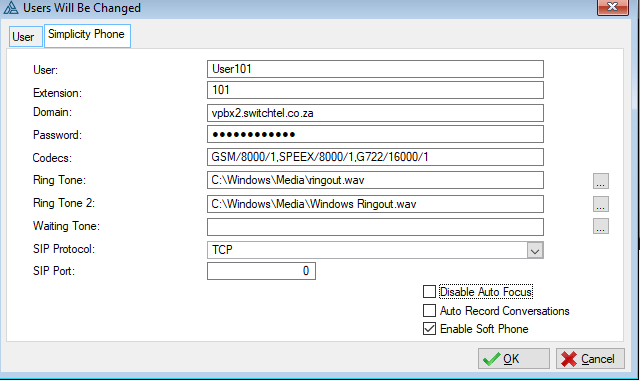
§User: The provider the company uses will provide the user details. for example: User101
§Extension: The provider the company uses will provide the extension. for example: 101
§Domain: The provider the company uses will provide the domain. for example: example.sip.com
§Password: The provider the company uses will provide the password.
§Codecs: The provider the company uses will provide the Codecs. for example: GSM/8000/1,SPEEX/8000/1,G722/16000/1
§Ring Tone 1/2: The ring-tones are default, but the user can insert their own ring-tones. : C:\Windows\Media\ringout.wav
§Waiting Tone: The ring-tones are default, but the user can insert their own ring-tones. : C:\Windows\Media\ringout.wav
§SIP Protocol: The SIP Port is also default inserted by the program but the user can choose between TCP or UDP.
§SIP Port: The SIP Port is also default inserted by the program.
§Disable Auto Focus: This check box will disable the auto focus of the softphone.
§Auto Record Conversations: This check box will record incoming and outgoing call conversations.
§Enable Softphone: This check box will make it possible for the softphone to work.
·Accessing the softphone and Initiating a call:
oTo make a call the softphone can be accessed either by:
§opening the main softphone window found on the toolbar

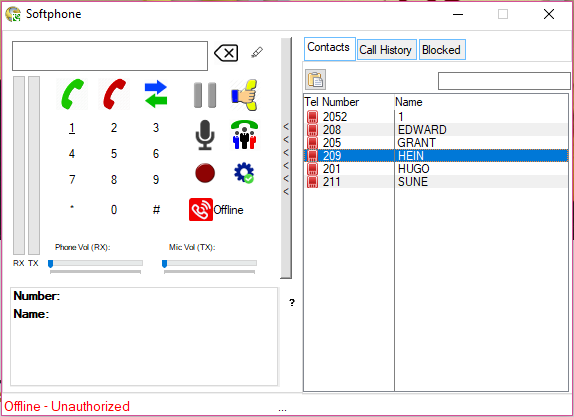
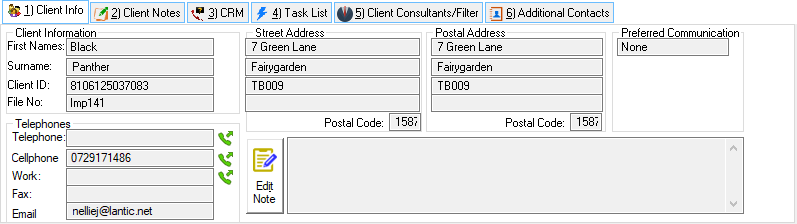
§or by clicking on the "Dial icon"
 found on the Client Info tab on the Client Browse.
·The corresponding number will be inserted into the softphone and dialed.
§As soon as the Outgoing call is answered, an "Outgoing Call" CRM record will be created and opened and will also be linked to the client with the corresponding number if available.
·Receiving Incoming call:
§When receiving a call, an "Incoming Call" CRM record for a client will be created and opened if the number being used to call the softphone is inserted on the corresponding client in Simplicity.