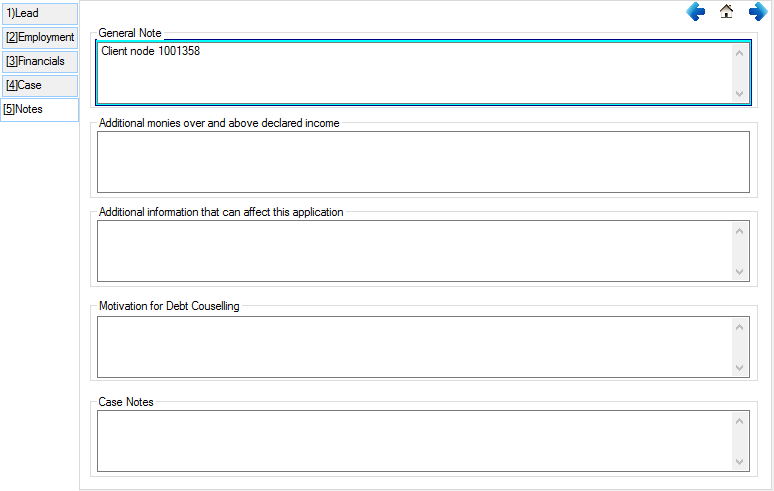
Lead Information
Program Navigation: toolbar > Leads > Insert > Lead Dashboard > Lead Information
|
Navigation: The User Interface > What is in Simplicity > Toolbar > Leads (Browse) > Lead Dashboard > Lead InformationProgram Navigation: toolbar > Leads > Insert > Lead Dashboard > Lead Information |
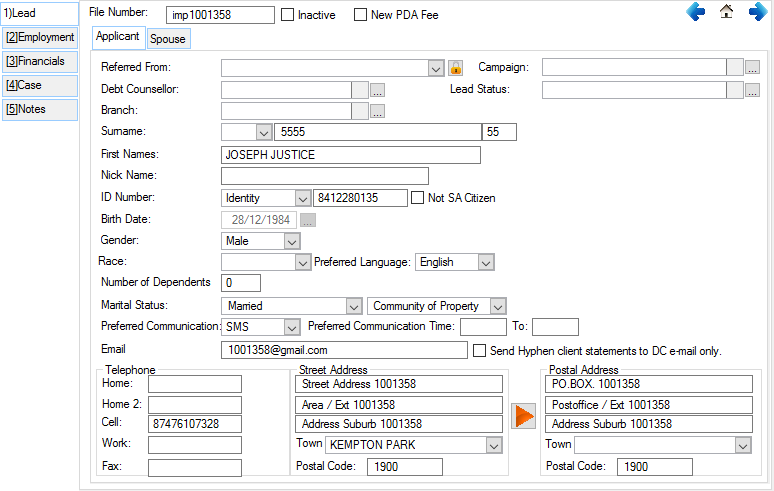
·The lead tab focus on the lead information. With fields to capture the basic lead information such as Name, ID number and contact information.
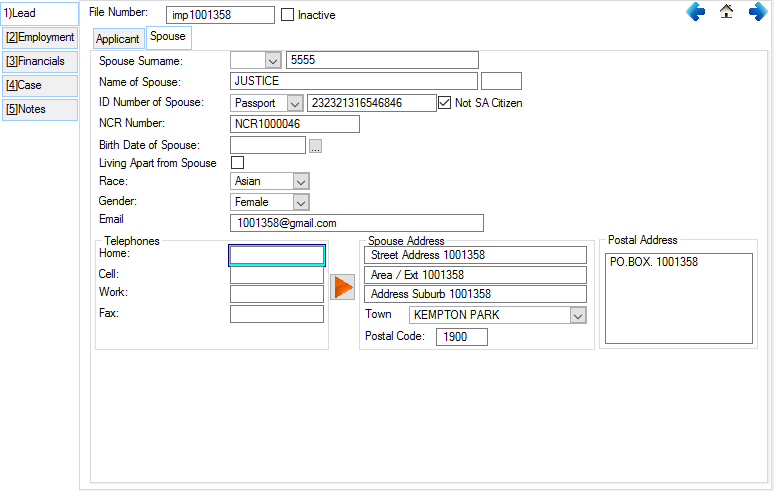
·Additionally spouse information can be captured based upon the marital status selected.
·There is also fields available where you can specify from where you acquired the lead and which marketing campaign brought in the lead.
·It can also be separately specified to which branch and Debt Counsellor the lead is assigned to if your organization has multiple branches and Debt Counsellors.
Click on the following headings to expand:

|

|
This form allows the user to insert and change the details regarding the lead's employment information. 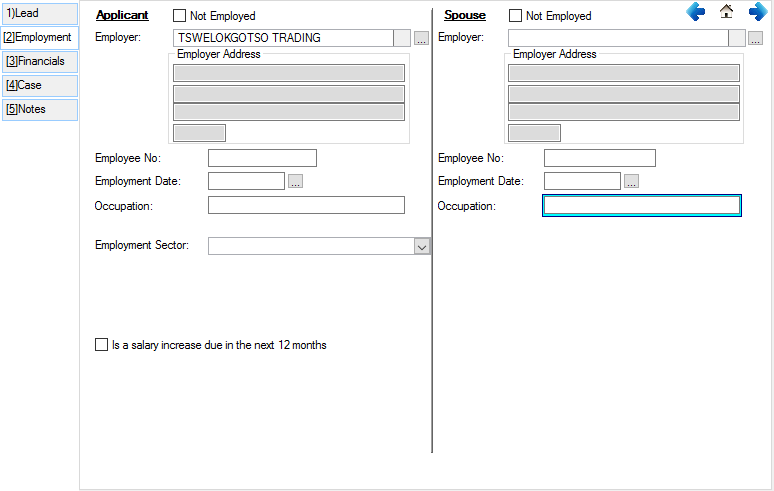
This is an example of the Employment tab
|
|
This form allows the user to insert and change the information regarding the lead's financial details. 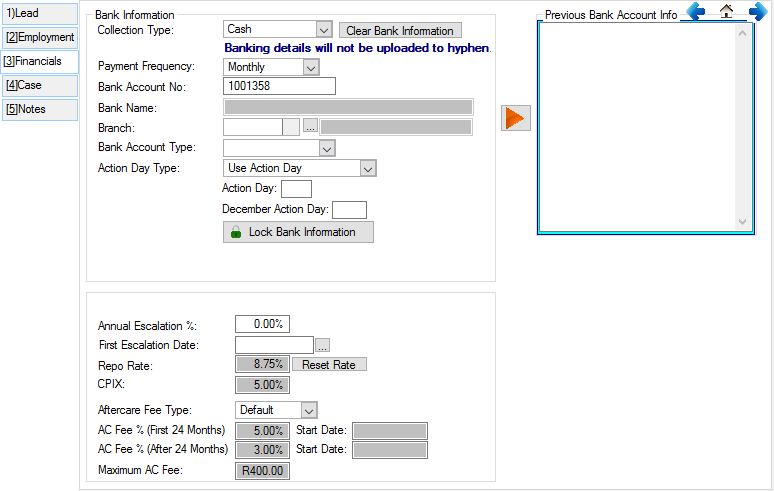
This is an example of the Financials tab
|
|
This form allows the user to insert and change the details of the lead regarding the case of the lead. 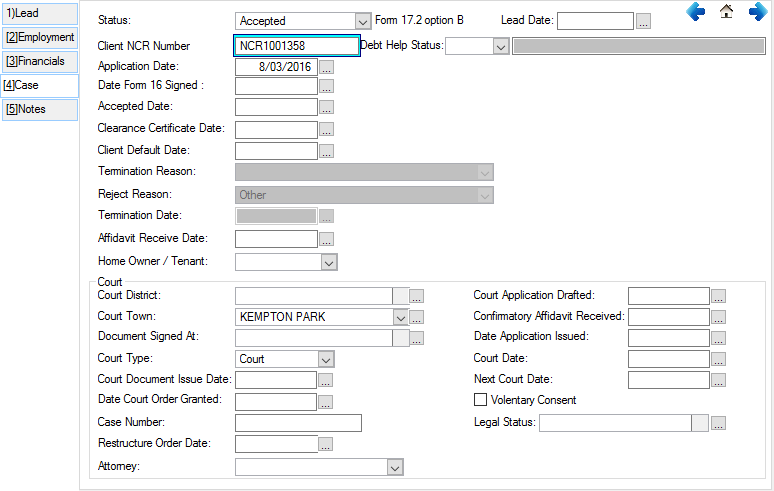
This is an example of the Case tab
|