|
Navigation: The User Interface > What is in Simplicity > Toolbar > Data BackupProgram Navigation: toolbar > Data Backup |
·A backup is a copy of the computer data (as a file or the contents of a hard drive) in case the original is lost or damaged. In information technology, a backup, or the process of backing up, refers to the copying and archiving of computer data so it may be used to restore the original after a data loss event.
·Backups have two distinct purposes. The primary purpose is to recover data after has been lost, be it by data deletion, corruption, theft or loss of data. The secondary purpose of backups is to recover data from an earlier time, according to a user-defined data retention policy,
·Data backups is a crucial part of a companys disaster recovery plan to ensure that in event of the amount of time and work lost is minimized.
·Since a backup system contains at least one copy of all data considered worth saving, the data storage requirements can be significant. Organizing this storage space and managing the backup process can be managed from Simplicity. Nowadays, there are many different types of data storage devices that are useful for making backups. There are also many different ways in which these devices can be arranged to provide geographic redundancy, data security, and portability.
·The backup facility simplifies the process of making, copying and maintaining Simplicity backups to ensure data redundancy as part of your data retention policy. Backups made from Simplicity include all information stored in Simplicity.
·IN ORDER TO CREATE A BACKUP IN SIMPLICITY SIMPLY CLICK ON THE "START BACKUP" BUTTON DAILY.
·PLEASE ENSURE THAT ALL DOCUMENT ARCHIVES ARE BACKED UP AS WELL.
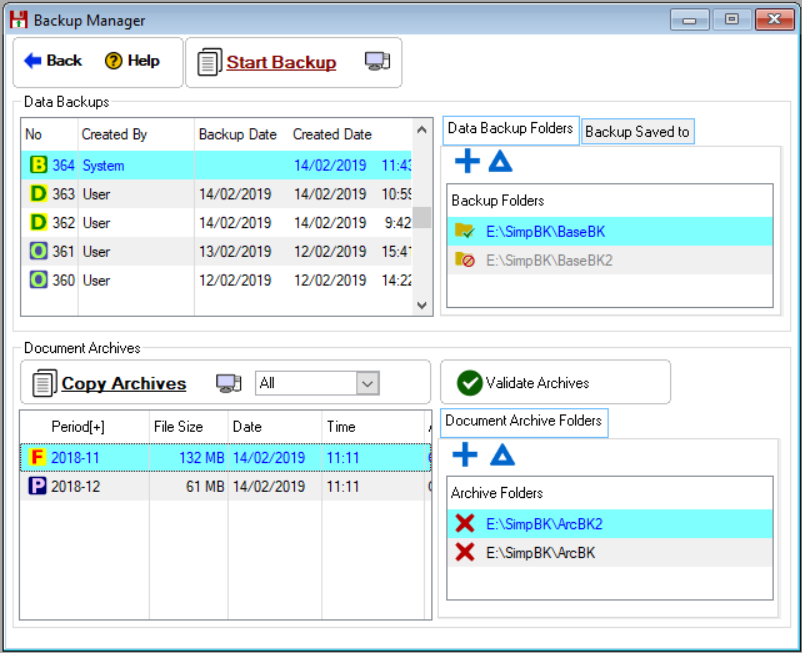
This is an example of the backup browse
Click on the following headings to expand:
 The following Features can be found on the Backup Browse:
|
·
oThis option will copy the latest prepared backup to the backup folders created.
o
§This option allows the user to copy the backup locally to the computer that the user is working on.
·Data Backups: oThis browse will display the current backup that was prepared and the date that it was created, as well as the user that worked last with the backup. oThe following icons can be found on the Start Backup Browse: §
§
§
·Data Backup Folders: oThis option allows the user to create data backup folders. oThese folders must be set up on a different drive than where the program is running from. oThese folders will be used to create the prepared backup containing all the captured data as well as the current month's documents.
·Backup Saved to: oThis tab will display the history of the backup folders created. oThis will also display any errors during the backup process.
·
oThis option will copy archived documents to the archive folders created. oBackup selected archive: §This option will copy only the selected archive to the archive folders. oBackup all archive: §This option will copy all archives to the archive folders that have not yet been successfully copied.
o
§This option allows the user to copy the archives locally to the computer that the user is working on.
oThis browse will display the documents folders that were made and the date on which they were created. oThe following icons can be found on the Document Archives Browse: §
§
§
·
oThis option will verify that all the archive folders contain all the archive backups. ·Document Archive folders: oThis browse allows the user to create additional data archive folders. oThese folders must be set up on a different drive than where the program is running from. oThese folders will be used to hold a backup of all the archive documents. |


|
oThe following videos will show the user how to make a backup in Simplicity. The backup facility simplifies the process of making, copying and maintaining Simplicity backups to ensure data redundancy as part of your data retention policy. Backups made from Simplicity includes all information stored in Simplicity.
|
|
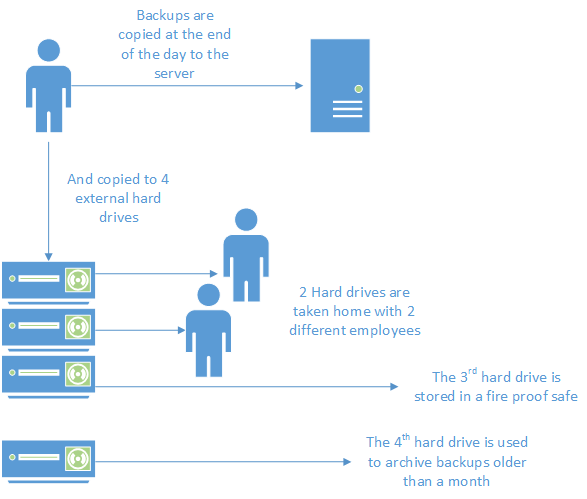
Good backup policies: oA backup policy is a pre-defined set schedule whereby information from business applications copied to disk to ensure data recover ability in the event of accidental data deletion, corrupted information, theft or some kind of system outage. The backup and maintenance of data for servers are critical to the viability and operations of the respective departments. oIt is essential that certain basic standard practices be followed to ensure that data files are backed up on a regular basis
|
|
o This toolbar allows the user to set up the security settings for feature or windows in Simplicity by clicking on the icon or feature that you want access granted or access denied. oThis will allow certain users to have access to certain features on the (*Subject*) browse.
This is an example of the Set Security Browse |