Accounts
|
Navigation: The User Interface > What is in Simplicity > Toolbar > Workflow (Phase 1) > Accounts |
·This browse allows the user to insert communication accounts such as email, SMS and webservice accounts.
·These accounts will be used to preform various integrated communication functions the reports and documents from, such as sending an email or SMS to clients or creditors.
·The fields available to edit will depend on the account type selected.
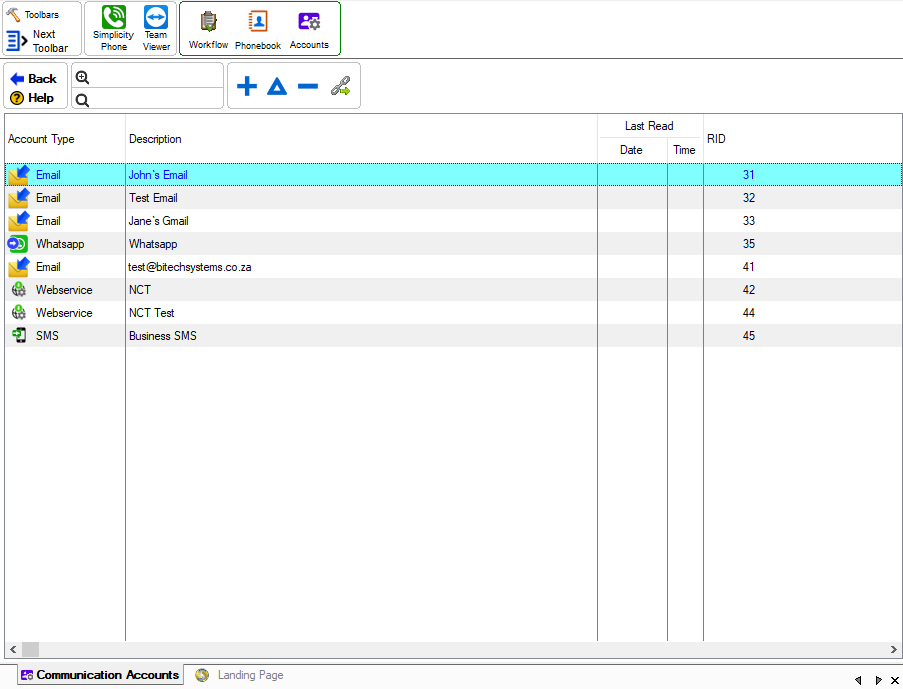
This is an example of the Account browse
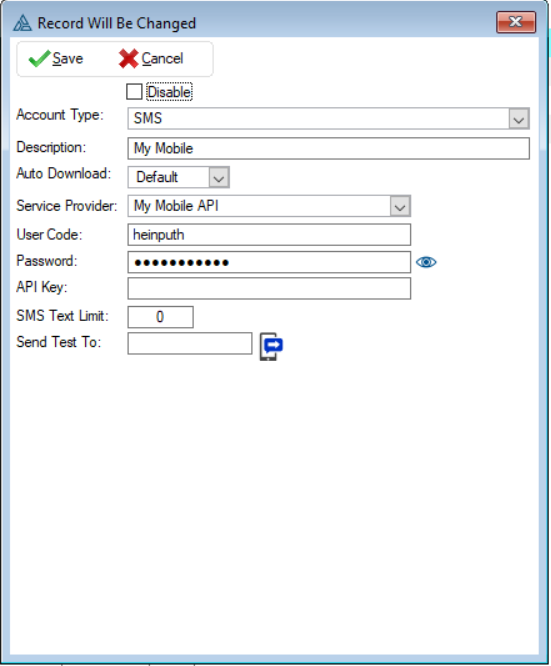
This is an example of the Accounts form
Click on the link to expand the topic:
 The Following can be found on the SMS accounts form:
|
·Account Type: oThis allows the user to select the account type that will be used for the communication.
·Description: oThis will allow the user to insert a name for the account.
·Auto Download: oThis allows the user to select if the messages of the account must be downloaded automatically or manually.
·Service Provider: oThis is allows the user to select the provider they will be using for the account.
·User Code: oThe user-name used to log into the mail server
·Password: oThe mail account password.
·Send test to: oAllows the user to send a test email using the inserted outgoing mail details.
·SMS Text Limit: oAllows the user to set a limit of word for the text.
·API Key: oThis allows the user to insert a unique code to identify the application or user. |
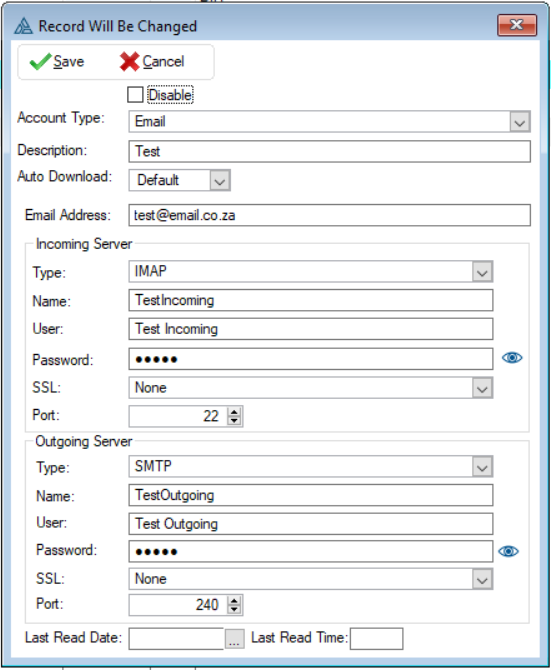
The Following can be found on the Email accounts form:
|
·Account Type: oThis allows the user to select the account type that will be used for the communication.
·Description: oThis will allow the user to insert a name for the account.
·Auto Download: oThis allows the user to select if the messages of the account must be downloaded automatically or manually.
·Email Address oThis allows the user to insert a email to be used.
·User oThe user-name used to log into the mail server.
·Password: oThe mail account password.
·Send Server: oThe server used for outgoing emails (usually looks something like "mail.domain.co.za" or "smtp.domain.co.za").
·SSL: o (0 = off, 1 = on) Used for mail accounts using secure sockets such as a Google account or a secure corporate mail account.
·SMTP Port: oThe port used for outgoing SMTP mail, default is 25 (secure ports are usually 465 or 586).
·Send Test Email: oAllows the user to send a test email using the inserted outgoing mail details. |
The Following can be found on the Webservice accounts form:
|
·Account Type: oThis allows the user to select the account type that will be used for the communication.
·Description: oThis will allow the user to insert a name for the account.
·Auto Download: oThis allows the user to select if the messages of the account must be downloaded automatically or manually.
·Service Provider: oThis is allows the user to select the provider they will be using for the account.
·User Code: oThe user-name used to log into the mail server.
·URL: oThis allows the user to insert the url link for the webservice account. vc
·API Key: oThis allows the user to insert a unique code to identify the application or user. |
|
o This toolbar allows the user to set up the security settings for feature or windows in Simplicity by clicking on the icon or feature that you want access granted or access denied. oThis will allow certain users to have access to certain features on the (*Subject*) browse.
This is an example of the Set Security Browse
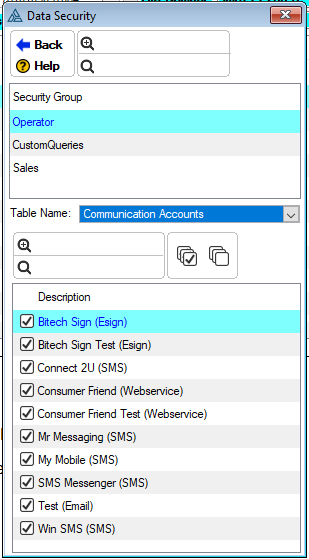
·Security can be set on individual communication accounts ·This will determine which communication account a user may use when preforming a communication function such as email or sms, to send a communication to a client or creditor. ·To access this security window for the account click on the Data Security control
·Select the table name "Communication Accounts" ·Then select which account for specific user can use.
This is an example of the Data Security browse |