Consumer Friend Webservice
|
Navigation: Simplicity Training > Consumer Friend Webservice |
·The Consumer Friend Web Service feature allows a user to send a 17.1 directly to consumer friend, various CRM records will be created throughout the process without the the need for email correspondence.
·Once a COB has been received from Consumer Friend through the Web Service, the details of the corresponding obligations will be updated as necessary.
oObligation Details will only be updated or inserted when the client's proposal status is "Create", otherwise balance changes will be inserted where possible.
·Once all details have been received/confirmed the CRM can be completed.
·Setting up the feature
oStep 1:
oThe DC will need to contact Consumer Friend in order to inform them that he/she wishes to make use of the Web Service for relevant DC's in the company.
oStep 2:
oOnce the Web service has been activated by Consumer Friend, the DC will need to contact Bitech Systems in order to activate the feature in simplicity.
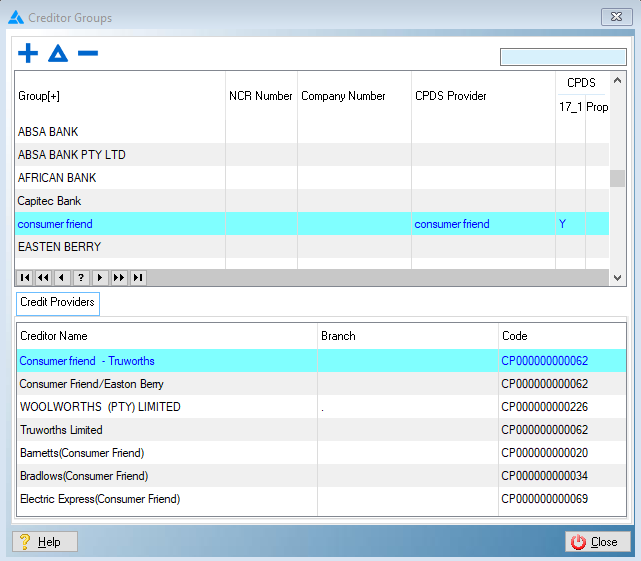
§ A "Consumer Friend" creditor group will be created and all relevant credit providers will be linked to that creditor group.
·Making use of the the feature
oStep 1:
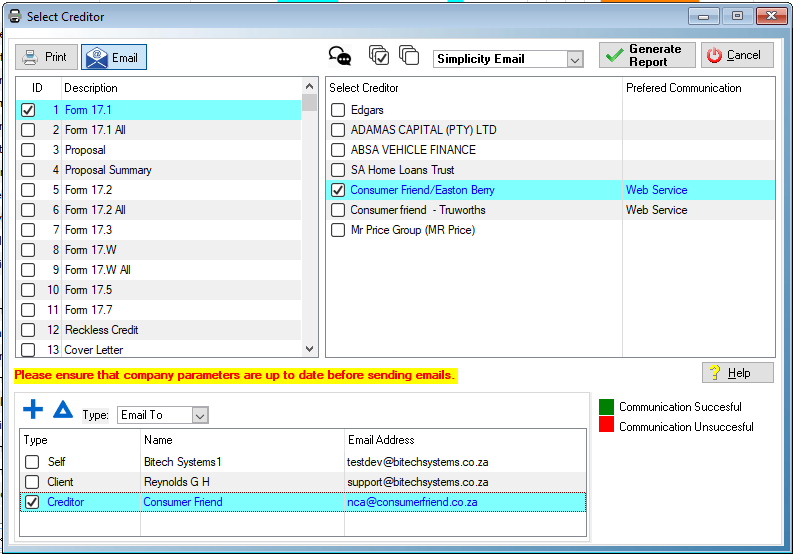
oTo begin using the feature, simply email a Form 17.1 for any Consumer Friend obligation.
§ Clicking on "Generate" will send a Web Service transmission to Consumer Friend containing all the relevant inserted account details for client's Consumer Friend obligations.
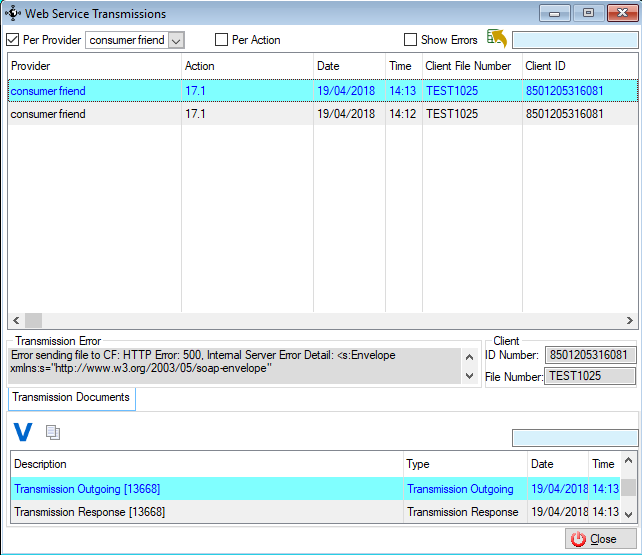
§ If any errors are experienced at this stage, go to the "Web Service Transmissions" windows to view the details of the error/s.
oStep 2:
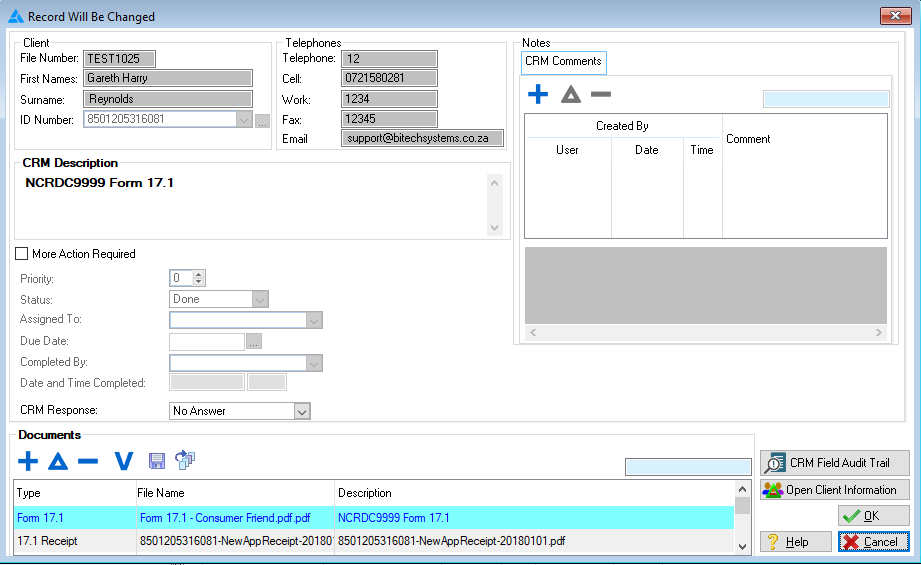
oOnce the transmission is successful, a CRM will be created
§ The CRM type will be "Generated Docs"
§ The CRM description will be "NCRDC DC Number Form 17.1"
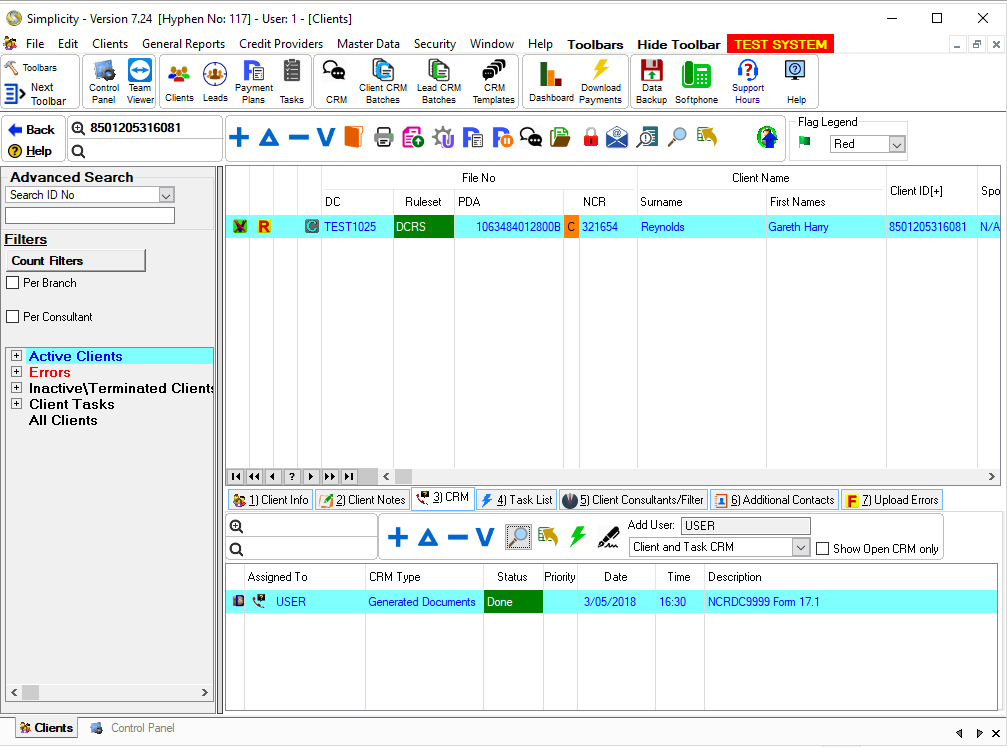
§ The 17.1 document that was sent to Consumer Friend will be attached to the CRM
§ A receipt from Consumer Friend upon receiving the 17.1 will also be attached to the CRM
oStep 3: .
oThe Hyphen download process will receive all available communication from Consumer Friend.
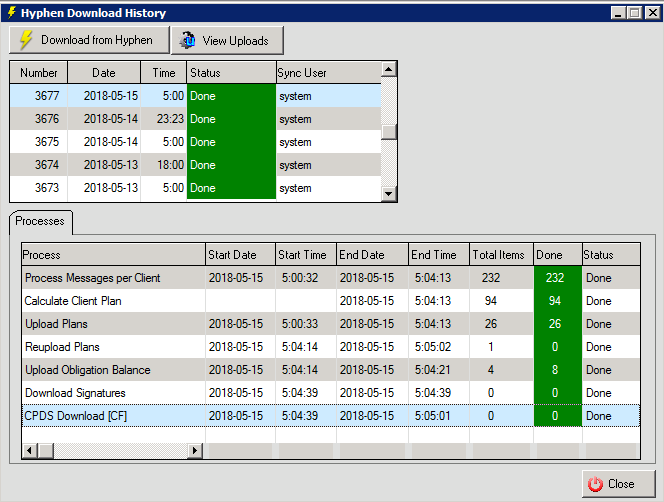
o Communications such as the COBs from Consumer Friend (if sent by them) will be downloaded as this stage.
§ If a COB is received, a CRM will be added to the client.
§ The CRM type will be "WebService Incoming".
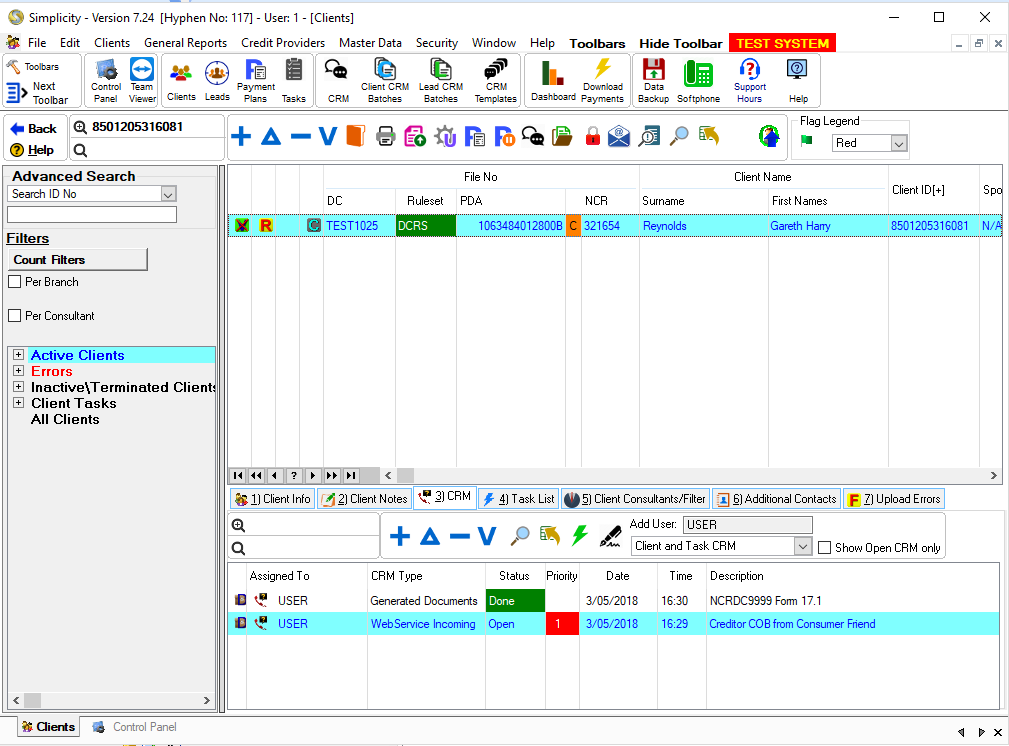
§ The CRM will contain all Consumer Friend accounts' COBs.
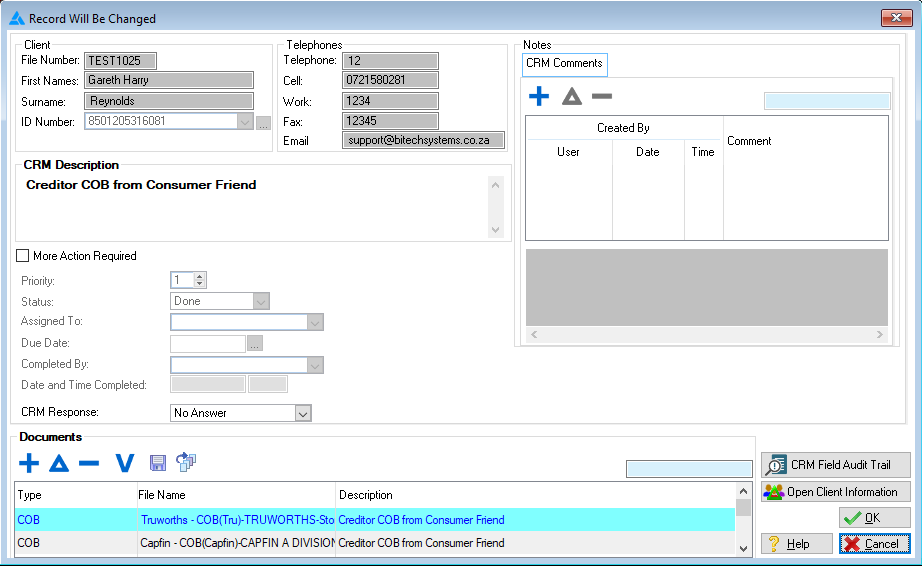
o If all the received COBs match the accounts currently inserted in Simplicity, the details of the Obligations will simply be updated.
§ there are any received COBs that do not match the accounts inserted in Simplicity, those Simplicity obligations will be excluded from debt review and the received accounts will be inserted.
§ It is important to note that all these automatic data updates will only be made if the client's proposal status is "Create" otherwise balance changes will be inserted for matching accounts, unmatched accounts will be ignored.
oStep 4:
oOnce all accounts have been updated/inserted accordingly, the CRM record can be completed.