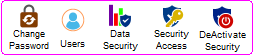
Security (Supervisor users only)
|
Navigation: The User Interface > What is in Simplicity > Toolbar > Security (Supervisor users only) |
·This toolbar allows the user to set up the security settings for feature or windows in Simplicity by clicking on the icon or feature that you want access granted or access denied.
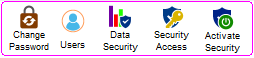
·Below are the steps involved in setting up and using Security in Simplicity:
·Activating the Security feature:
oThe user can activate the Security by clicking on the "Activate Security" button on the toolbar ( Hotkey Ctrl + F9).
oThe following will appear below the toolbar:
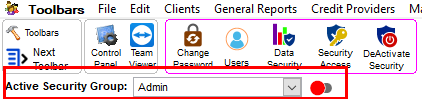
oTake note of the "Active Security Group" drop-down menu, this allows the user to select a group to which the security settings will apply.
oActivate/Deactivate Security:
§While the security feature is enabled, this switch
 will appear on each window.
·This switch allows the user to enable or disable the security access settings for the current window.
§Clicking on the switch will toggle the it's colour between green and red.
·
The security settings access feature is currently disabled (is also applied if the current window is closed).
·
 The security access settings feature is enabled.
·
 The security access settings feature is enabled, however clicking on the switch again will present the user with the following additional options:
§Deny Access to this window: This option will turn the window black indicating that the selected users will not have access to this window.
§Allow Access to this window: This option will turn the window back to normal indicating that the selected users will have access to this window.
§Exit Security:This will toggle the switch colour red indicating that the feature is now disabled.
§Cancel:This will close the drop down menu.
·How to grant accesses to specific features:
§Once the security access settings feature has been enabled for a specific window
, all features to which security accesses can be applied will be highlighted with the following colours:
§The Green colour informs the user that access is granted to that particular feature for the selected group.

§The Orange colour informs the user that access is denied to that particular feature for the selected group.

§Simply clicking on the feature will toggle the colour between Green (Granted) and Orange (Denied).
§Once a user (who has been denied accesses to a feature) logs in, the restricted feature(s) will be highlighted with a grey colour and the cursor will display a "No entry" icon.
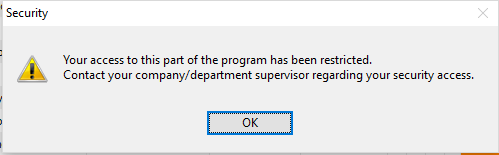
§If the user to attempts to accesses a restricted feature the following message will be displayed:
·Deactivating the Security for a window:
o Once all desired security settings have been applied the security feature can be deactivated.