Creating Client Batches
Program Navigation: Simplicity > toolbar > CRM Batches > Insert > Outgoing Calls
|
Navigation: The User Interface > What is in Simplicity > Toolbar > Client Batches > Creating Client Batches
Program Navigation: Simplicity > toolbar > CRM Batches > Insert > Outgoing Calls |
oAn Client Batch record is used when creating CRM records to schedule outgoing calls for a selection of Clients or Leads.
oA CRM Template must be used when creating a CRM Batch, the Templates available are determined by the CRM Batch Type selected, the batch can also be assigned to a specific user.
oUpon the batch creation, individual CRM records will be generated for the clients or leads selected in the batch.
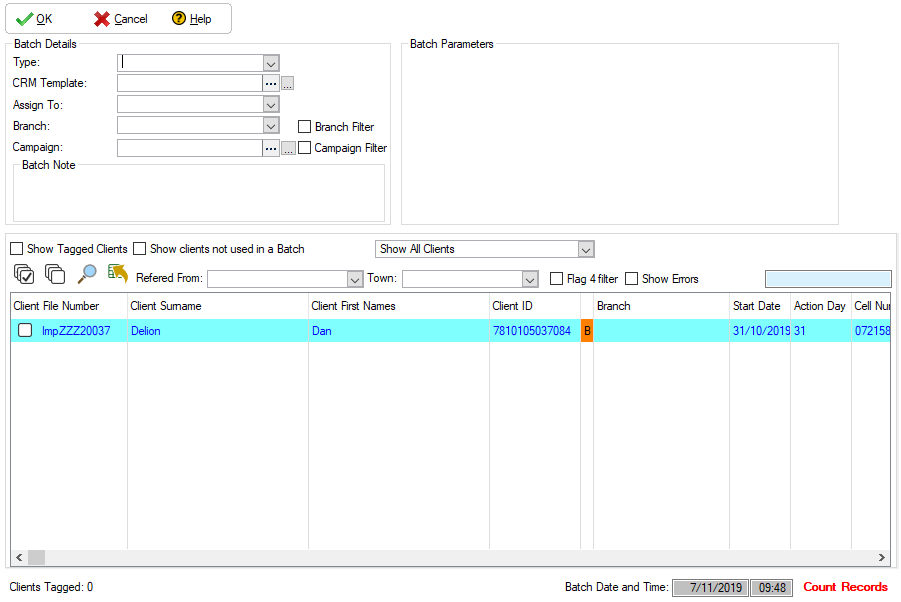
 The following can be found on the client batch window:
|
·Type: oThis field allows the user to select the nature of the batch to be created.
·Collection Type Change: oThis batch type will update the collection type of all the clients tagged in the batch. ·The following batch parameters will be made available for this batch type:
§Change Collection Type To: §This will allow the user to select the collection type to which the tagged clients should be updated.
§DebiCheck Mandate Type (Only applicable to collection type "DebiCheck"): §This will allow the user to select the Mandate type to which the tagged clients should be updated.
§Upload Payment Plan: §This check-box will flag all the tagged clients for an upload to Hyphen once the batch is executed.
§Change Client Branch: ·This batch type will update the branch of all the clients tagged in the batch. ·The following batch parameters will be made available for this batch type:
·Change client branch To: ·This will allow the user to select the branch to which the tagged clients should be updated.
·Upload Payment Plan: oThis check-box will flag all the tagged clients for an upload to Hyphen once the batch is executed.
§Change Client Flags: ·This batch type will update the flags of all the clients tagged in the batch. ·The following batch parameters will be made available for this batch type:
·Change client flag No: ·This will allow the user to select the flag number to which the tagged clients should be updated.
·Change client flag Colour: ·This will allow the user to select the flag colour to which the tagged clients should be updated.
§Change Client Status: ·This batch type will update the active status of all the clients tagged in the batch. ·The following batch parameters will be made available for this batch type:
·Change client status to: ·This will allow the user to select the status to which the tagged clients should be updated. · - Active - This will clear the inactive flag on the selected clients. · - Inactive - This will enable the inactive flag on the selected clients.
·Upload Payment Plan: ·This check-box will flag all the tagged clients for an upload to Hyphen once the batch is executed.
§Change Obligation Creditor: ·This batch type will update the Hyphen CP of the obligations linked to the selected Hyphen CP or fee type for all the clients tagged in the batch. ·The following batch parameters will be made available for this batch type:
·Change from Hyphen CP: ·This will allow the user to select the Hyphen CP of the obligations for the tagged clients that need to be updated
·Change to Hyphen CP: ·This will allow the user to select the Hyphen CP to which the obligations for the tagged clients should be updated
§Restructure Fees: ·This will apply the selected update to only the Restructure fees of the tagged clients
§Reckless Lending Fees: ·This will apply the selected update to only the Reckless Lending fees of the tagged clients.
§Upload Payment Plan: ·This check-box will flag all the tagged clients for an upload to Hyphen once the batch is executed.
·DebiCheck Mandate Request: oThis batch type will create a mandate request record for all the clients tagged in the batch. ·The following batch parameters will be made available for this batch type:
§Mandate Channel §This will allow the user to select the Mandate Channel that will be used for the Mandate Requests to be created
§Mandate Day §This will allow the user to select the Mandate Day that will be used for the Mandate Requests to be created.
§Mandate Frequency: §This will allow the user to select the Mandate Frequency that will be used for the Mandate Requests to be created
·December Action Day Change: oThis batch type will update the December Action Day for all the clients tagged in the batch. ·The following batch parameters will be made available for this batch type:
§ Change December Action Day to: §This will allow the user to select the December Action Day to which the tagged clients should be updated.
§Upload Payment Plan: §This check-box will flag all the tagged clients for an upload to Hyphen once the batch is executed.
·Email Outgoing: oThis batch type will create an Email Outgoing CRM record for all the clients tagged in the batch. oUpon the batch creation, individual Email Outgoing CRM records will be generated for the clients or leads selected in the batch. oA CRM Template must be used when creating an Email Outgoing Batch in order to determine the content of the individual Email Outgoing CRM records.
·Maintain Payment Plan: oAllows the user to view all the CRM records that have been created for the selected CRM batch record. ·The following batch parameters will be made available for this batch type: §Upload Payment Plan: §This check-box will flag all the tagged clients for an upload to Hyphen once the batch is executed.
§Calculate Payment Plan: §This check-box will flag all the tagged clients for a plan calculation once the batch is executed.
·SMS Outgoing: oThis will allow a user to create a SMS Outgoing CRM record for the tagged clients oA CRM Template must be used when creating a SMS Outgoing Batch in order to determine the content of the individual SMS Outgoing CRM records oUpon the batch creation, individual SMS Outgoing CRM records will be generated for the clients or leads selected in the batch.
·CRM Template (applicable to Email and SMS Outgoing): oAllows the user to select a CRM template for the client batch, the templates available are determined by which client batch type was selected (CRM templates will cause the relevant merged fields of each CRM record to be populated with the associated client's information).
·Assigned To: oAllows the user to assign the CRM record to another user.
·Branch: oAllows the user to assign a branch to the Client Batches.
·Branch Filter: oAllows the user to filter the client list by displaying only clients linked to the inserted branch.
·Campaign: oAllows the user to assign a Campaign to the Client Batches.
·Campaign Filter: oAllows the user to filter the client list by displaying only clients linked to the inserted Campaign.
·Batch Note: oAllows the user to insert a note for the Client Batches.
·Previous Batches For Client oDisplays the batches (if applicable) that have been created in the past that contain a CRM record for the selected client.
·Show Tagged Clients: oAllows the user to filter the list of clients by displaying only clients currently tagged.
·Show clients not used in a batch: oAllows the user to filter the list of clients by displaying only clients that do not have a CRM record linked to a previous batch.
·Filter clients per payment type (Only available for clients): oAllows the user to filter the list of clients by displaying only client that meet the selected filter criteria.
oShow All Clients: Displays all clients. oShow Unpaid Clients per Date Range: Displays only clients that have missed payments between the dates inserted in the "From" and "To" fields. oShow Paid Clients per Date Range: Displays only clients that have made payments between the dates inserted in the "From" and "To" fields. oShow Raised Clients per Date Range: Displays only clients whose debit orders have been raised between the dates inserted in the "From" and "To" fields.
·From: oAllows the user to insert a start date for the date range used with the "clients per payment type" filter.
·To: oAllows the user to insert an end date for the date range used with the "clients per payment type" filter.
·Tag: oAllows the user to tag clients in the list according to certain criteria:
oTag All: Allows the user to tag all clients in the list. oTag Specific amount: Allows the user to tag clients by inserting a number of clients to be tagged. oTag from CSV file: Allows the user to tag clients by using a CSV file that contains client ID numbers that match the ID numbers of clients in the database (The CSV file must contain the client ID numbers in the first column of the file).
·Un-Tag All: Allows the user to un-tag all clients in the list.
·Referred From: oAllows the user to select a referral by which to filter the list of clients.
·Referred From: oAllows the user to select a town by which to filter the list of clients.
·Flag 4 Filter: oAllows the user to filter the list of clients by displaying only clients that have the 4th flag enabled on the client browse.
·Show errors: oAllows the user to filter the list of clients by displaying only clients whose CRM records failed either while being created or being sent.
·Count Records: oClicking on this control displays the number of clients currently on the list. |