Client Reports + Email
Program Navigation: toolbar > Clients > DC Reports > Client Reports + Email
|
Navigation: The User Interface > What is in Simplicity > Toolbar > Clients (Browse) > Generate Tickets > Client Reports + EmailProgram Navigation: toolbar > Clients > DC Reports > Client Reports + Email |
·This control allows the user to print or email various client reports.
·An Email with the attached report can be created from this window.
·A CRM record with the attached report can be created from this window.
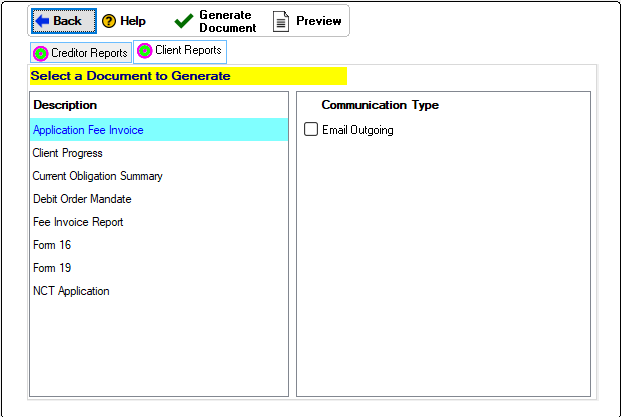
This is an example of the Client Reports + email window
 The following can be found on the Client Reports + Email Browse:
|
·
oThis control allows the user to print the selected report/s. oThis option will send the report directly to the default printer if the "Preview" and/or the "Create CRM of Report" options are not selected.
·
oThis control allows the user to email the selected reports/s to the client using the selected email program (default email, Simplicity email). oThe selected reports will be attached to the generated email for the client.
·
oThis control allows the user to use the E-sign feature to send the documents to the client to be signed.
·Create CRM of Report (Only available for "Print" option): oThis option will create a separate CRM record for each selected report for the client, the associated report will be attached to each CRM record. oReports cannot be previewed when this option is selected.
·Preview Report(Only available for "Print" option): oAllows the user to display a preview of the reports before printing or saving as PDF.
·Email Program: oAllows the user to select the email program with which to send the email to the client. §Simplicity Email: This option makes use of the Simplicity email feature to send the emails to the client. §Default Email: This option makes use of the workstation's default email program to send the emails to the client (Outlook, Thunderbird, Incredimail).
·Generate Reports: oThis control allows the user to perform the selected action (print or email) for the selected reports and client.
·Type: oThis allows the user to select which contact to email and which contact to CC.
oEmail To: Allows the user to select the contact person that must receive the email. oCC To: Allows the user to select the contact person/s that must receive a carbon copy of the email. |


